Data Exporter
Chapter 10: Data Importer — 10.8 Data Exporter
Use Exporter to manage and configure this feature in your EQuipWeb system.
Use the Data Exporter to download your data as spreadsheet files. Export your product catalog, member list, or transaction data — useful for backups, reporting, or preparing import files for bulk updates.
When to use this: When you need to download product, member, or transaction data as a spreadsheet for review or backup.
Prerequisites
- User must have appropriate role permissions (see Access & Permissions above)
Data Exporter
📝 General Description
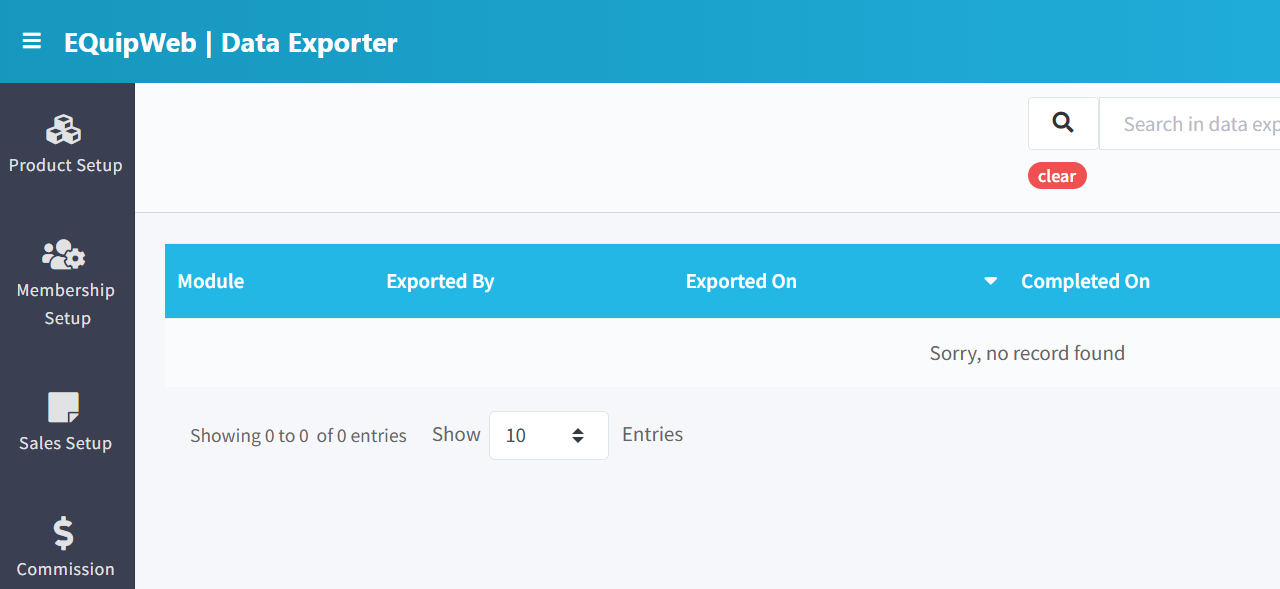
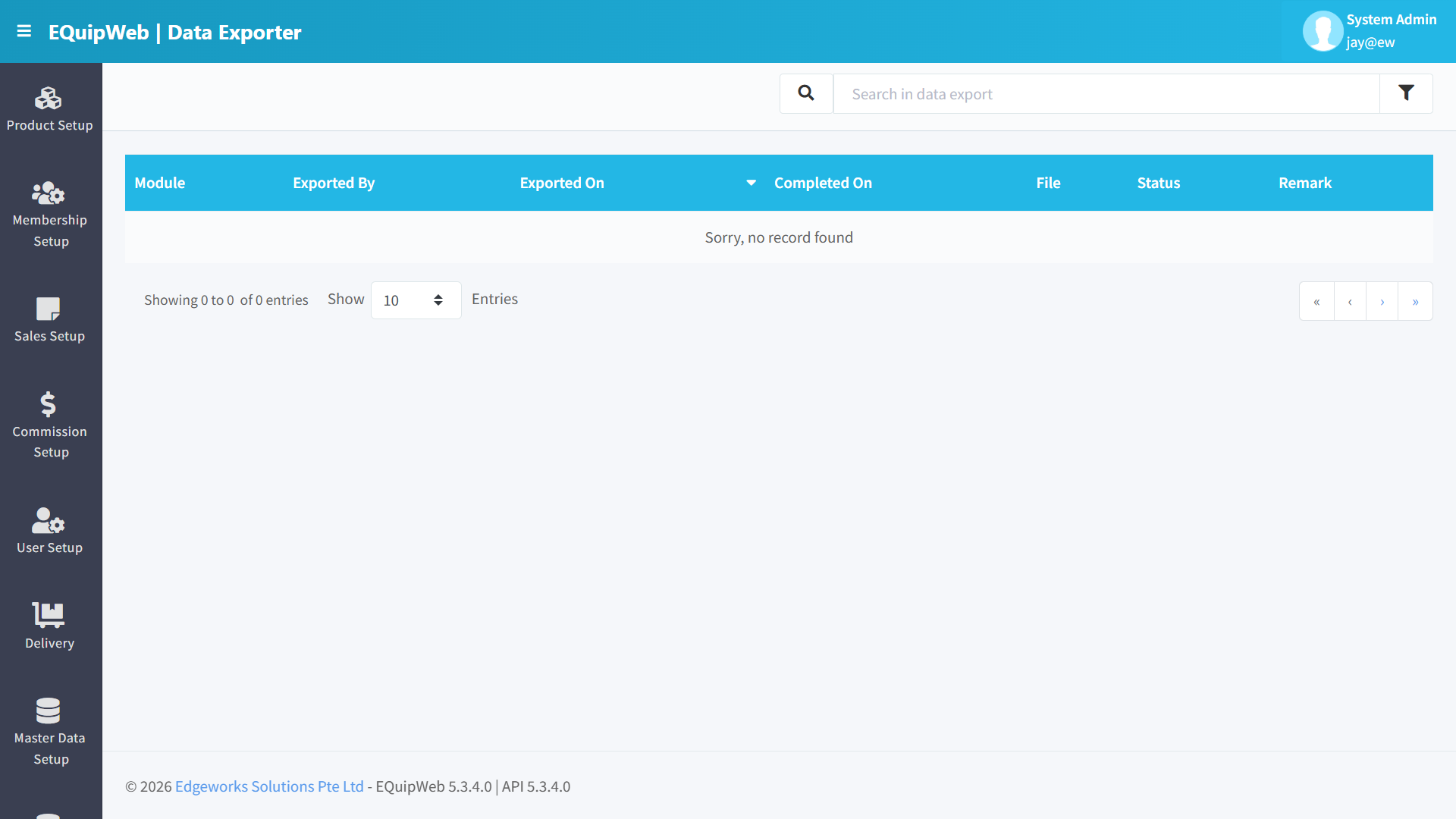
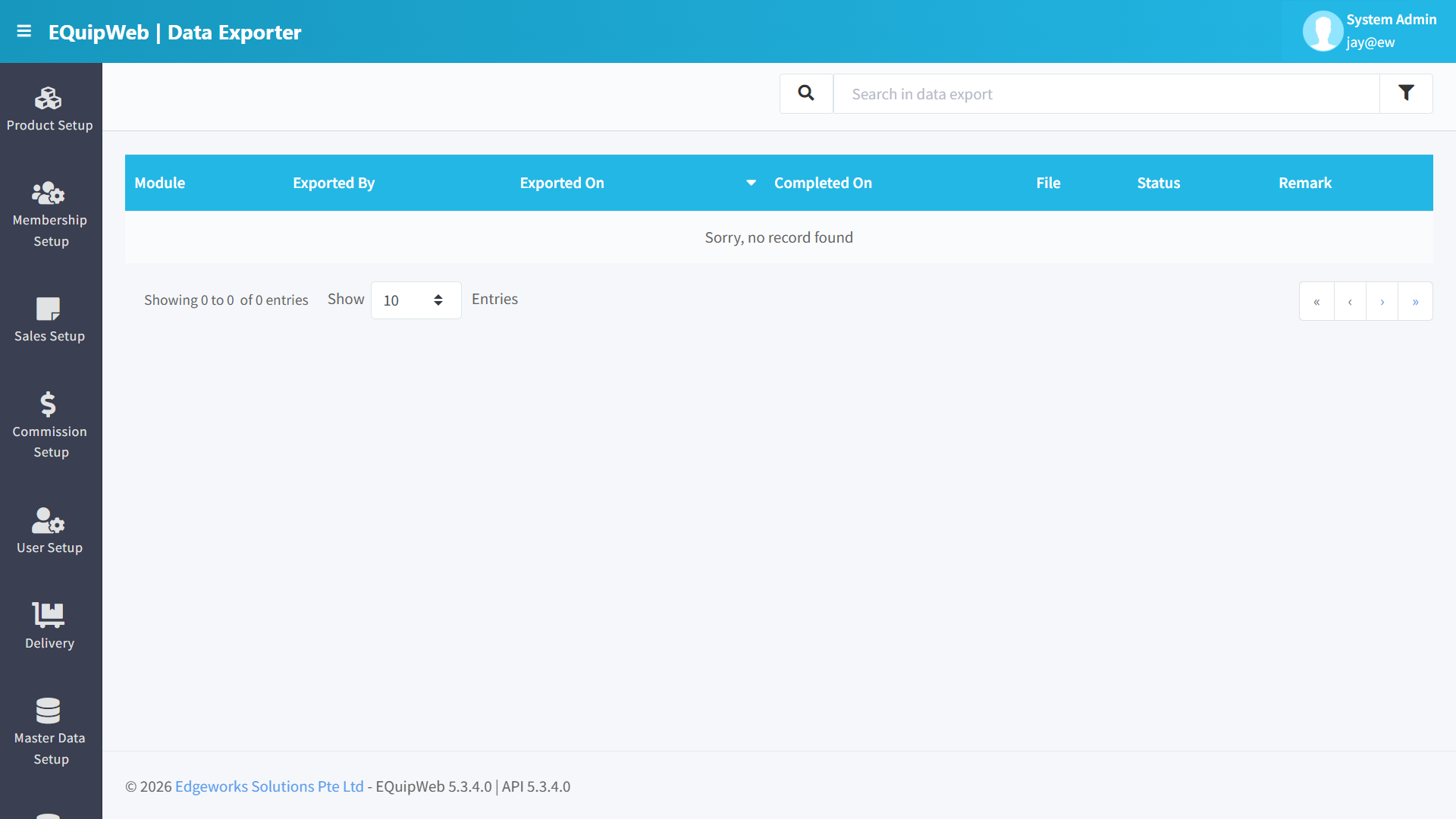
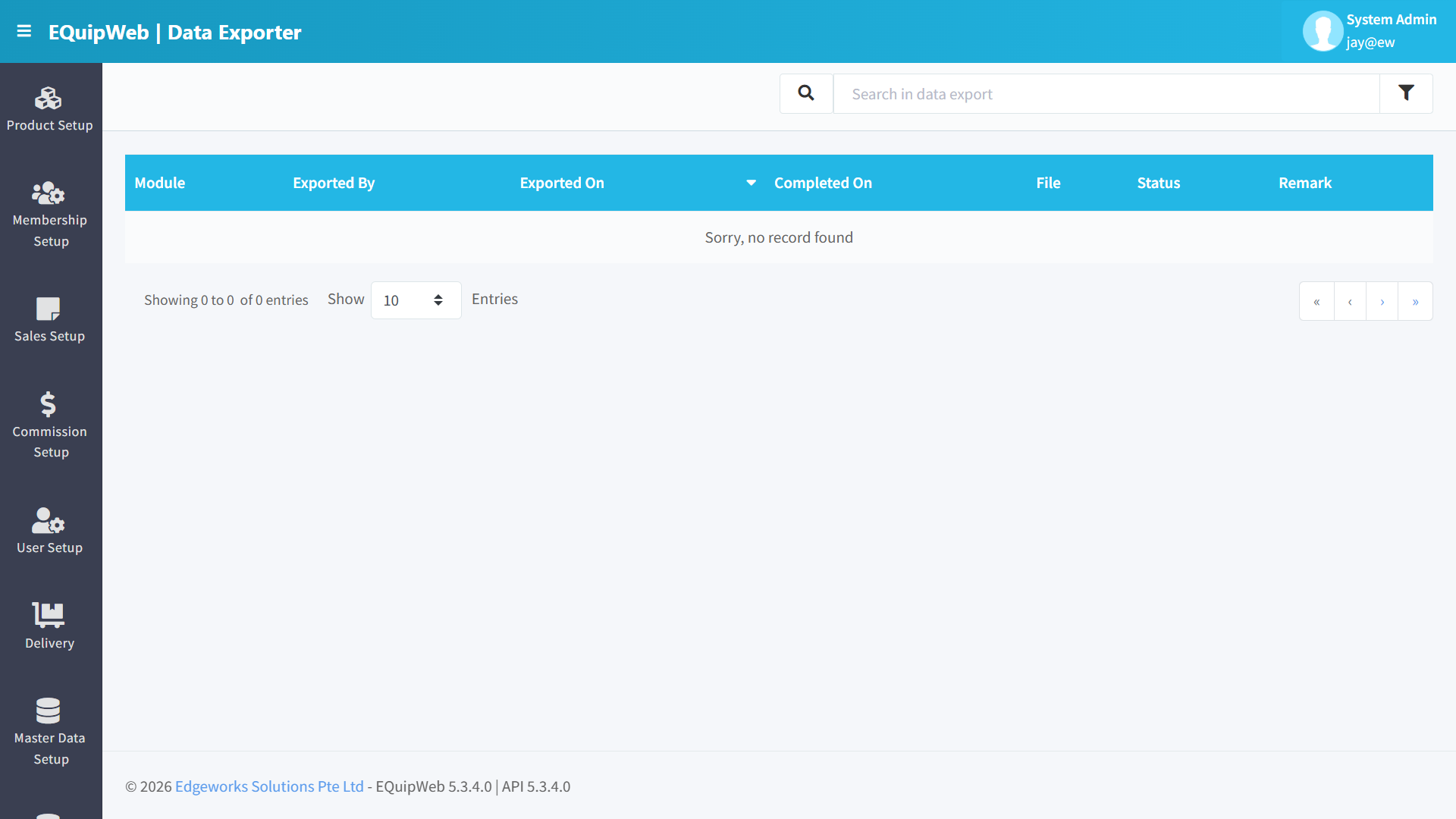
Unlike the Importer pages, the Data Exporter does not have an Import button. Instead, it displays a history log of all data exports performed in the system. Each row represents one export job with its status and downloadable output file. Exports are triggered from individual module pages (e.g., exporting from Product Importer, Membership Importer, etc.).
⚙️ UI Elements
| Element | Type | Function |
|---|---|---|
| 🔍 Search in data export | Text Input | Filter export records by keyword |
| 🔽 Filter | Funnel Icon | Advanced filter options |
Use Exporter to manage and configure this feature in your EQuipWeb system.
10.8.1 Data Grid Columns
| Column | Description |
|---|---|
| Module | The module that triggered the export (e.g., Product, Membership, Promotion) |
| Exported By | Username of the person who initiated the export |
| Exported On | Timestamp when the export was started |
| Completed On | Timestamp when the export finished processing |
| File | Download link for the exported file |
| Status | Export status — COMPLETED, PROCESSING, or ERROR |
| Remark | Additional notes or error messages about the export |
Use Exporter to manage and configure this feature in your EQuipWeb system.
10.8.2 How Exports Work
Exports are not initiated from this page. Instead, you trigger exports from the individual importer pages:
- Go to any Importer page (e.g., Product Importer, Membership Importer).
 2. Select the Export Type dropdown (e.g., "Export with Blank Template" or "Export with Data").
 3. Click the green Export button.
 4. The export job is queued and processed in the background.
5. Come to the Data Exporter page to check the status and download the file.
4. The export job is queued and processed in the background.
5. Come to the Data Exporter page to check the status and download the file.
Use Exporter to manage and configure this feature in your EQuipWeb system.
10.8.3 Export Statuses
| Status | Description |
|---|---|
| PROCESSING | Export is still being generated — wait for it to complete |
| COMPLETED | Export finished successfully — click the File download link to get the file |
| ERROR | Export failed — check the Remark column for error details |
Use Exporter to manage and configure this feature in your EQuipWeb system.
10.8.4 Common Export Use Cases
| Use Case | Module | Workflow |
|---|---|---|
| Bulk Price Update | Product | Export with Data → Update prices in Excel → Re-import via Product Importer |
| Member Communication | Membership | Export with Data → Use for email campaigns or SMS blasts |
| Template Download | Any | Export with Blank Template → Get the correct CSV format for importing new data |
| Backup | Any | Export all modules periodically for data backup |
Use Exporter to manage and configure this feature in your EQuipWeb system.
💡 Tips
[!TIP] Use "Export with Blank Template" to get the correct CSV column format before creating import files. This ensures your import file has the right headers.
[!WARNING] Large exports (100,000+ records) may take several minutes to generate. The status will show PROCESSING until complete — do not re-trigger the export or you'll create duplicate jobs.
[!NOTE] Exported data reflects the current state at the time of export. For historical snapshots, export periodically (e.g., weekly product data backups).
Use Exporter to manage and configure this feature in your EQuipWeb system.
Access & Permissions
| Role | View | Create | Edit | Delete |
|---|---|---|---|---|
| Admin | Yes | Yes | Yes | Yes |
| Supervisor | Yes | Yes | Yes | No |
| Cashier | No backend access | — | — | — |
[!NOTE] Exact permissions depend on the Privileges Setup configured for each role. Contact your administrator if you cannot access this page.
Use Exporter to manage and configure this feature in your EQuipWeb system.
How to Export Data
- Navigate to Data Importer & Exporter > Data Exporter from the sidebar menu.
- Select the Data Type you want to export (e.g., Products, Members, Sales, etc.).
- Configure any filters to narrow down the export (date range, outlet, category, etc.).
- Select the file format (Excel/CSV) if options are available.
- Click Export to generate and download the file.
Expected Result: An Excel/CSV file is downloaded containing the selected data based on your filters.
[!TIP] Use Data Exporter to create backups before bulk imports, or to share data with external systems and vendors.
How to Import Data
- Navigate to Data Importer & Exporter → Data Exporter from the sidebar menu.
-
Click Download Template to get the Excel template with correct column headers.
-
Open the template and fill in your data according to the column headers.
- Save the completed Excel file.
- Click Choose File and select your completed template.
- Click Import to upload and process the file.
- Review the validation results — fix any errors and re-upload if needed.
- Click Confirm Import to finalize.
✅ Expected Result: Data is imported and available in the system.
FAQ
Q: What file format should I use for import? A: Use .xlsx (Excel) format. Download the blank template from the importer page to ensure correct column structure.
Q: Can I undo an import? A: No. Imports cannot be automatically reversed. You would need to manually correct or delete the imported records.
Q: Why does my import show validation errors? A: Check the error details for each row. Common issues include: missing required fields, duplicate codes, invalid date formats, or referencing categories/departments that don't exist yet.
Use Exporter to manage and configure this feature in your EQuipWeb system.
Troubleshooting
| Issue | Possible Cause | Solution |
|---|---|---|
| Upload fails with error | File format is not .xlsx or file is corrupted | Download a fresh template, re-enter data, and try again |
| Validation errors on rows | Missing required fields or invalid data format | Check the error details column for specific row issues |
| "Duplicate record" warning | Data already exists in the system | Check if the record exists and decide whether to update or skip |
| Import shows 0 records processed | File is empty or wrong template version | Verify the file has data rows and uses the latest template |
| Error 404 on upload | File too large or server timeout | Split the file into smaller batches (max 500 rows recommended) |
| Data imported but not visible | Filters hiding the new records | Clear all filters and search for the imported records |
Use Exporter to manage and configure this feature in your EQuipWeb system.
Related Menus
- Product Setup > Product List — imported product destination
- Membership Setup > Membership List — imported member destination
- Master Data > Supplier Setup — supplier data reference
Use Exporter to manage and configure this feature in your EQuipWeb system.
Open Questions / Confirmation Needed
[!NOTE] The following items may vary depending on your system version and configuration:
- Exact permission settings depend on your Privileges Setup configuration
- Sync timing to POS terminals depends on network conditions and sync schedule
- Some features may require additional licensing or module activation
- Field behavior may differ between EQuip versions
If you encounter behavior not described in this manual, contact your system administrator or EQuip support team.
Expected Result: Changes are saved successfully and reflected across the system after the next POS sync.
Field Reference
| Field | Required | Description |
|---|---|---|
| Name / Title | Yes | The display name for this record |
| Status / Active | — | Whether this record is active in the system |
| Created Date | Auto | System-generated creation timestamp |
| Modified Date | Auto | System-generated last modification timestamp |
[!NOTE] Additional fields specific to this page are documented in the sections above. The table above shows common fields present across most pages.
Related Articles
Low Qty Importer
? Backend — EQuipWebRetail ModeData Importer & Exporter Chapter 10: Data Importer — 10.6 Low Qty Importer Use Importer to manage and configure this feature in your EQuipWeb system. Use the Low Qty Importer to set stock alert levels for many products ...Promotion Importer
? Backend — EQuipWebRetail ModeData Importer & Exporter Chapter 10: Data Importer — 10.4 Promotion Importer Use Importer to manage and configure this feature in your EQuipWeb system. Use the Promotion Importer to create or update many promotions at ...Membership Importer
? Backend — EQuipWebRetail ModeData Importer & Exporter Chapter 10: Data Importer — 10.3 Membership Importer Use Importer to manage and configure this feature in your EQuipWeb system. Use the Membership Importer to add many members at once from a ...Supplier Product Importer
? Backend — EQuipWebRetail ModeData Importer & Exporter Chapter 10: Data Importer — 10.5 Supplier Product Importer Use Importer to manage and configure this feature in your EQuipWeb system. Use the Supplier Product Importer to link many products to ...Material Importer
? Backend — EQuipWebRetail ModeData Importer & Exporter Chapter 11: Data Importer & Exporter — 11.6 Material Importer Use Importer to manage and configure this feature in your EQuipWeb system. Use the Material Importer to upload raw material and ...