Main Portal
Backend Login — Main Portal Dashboard
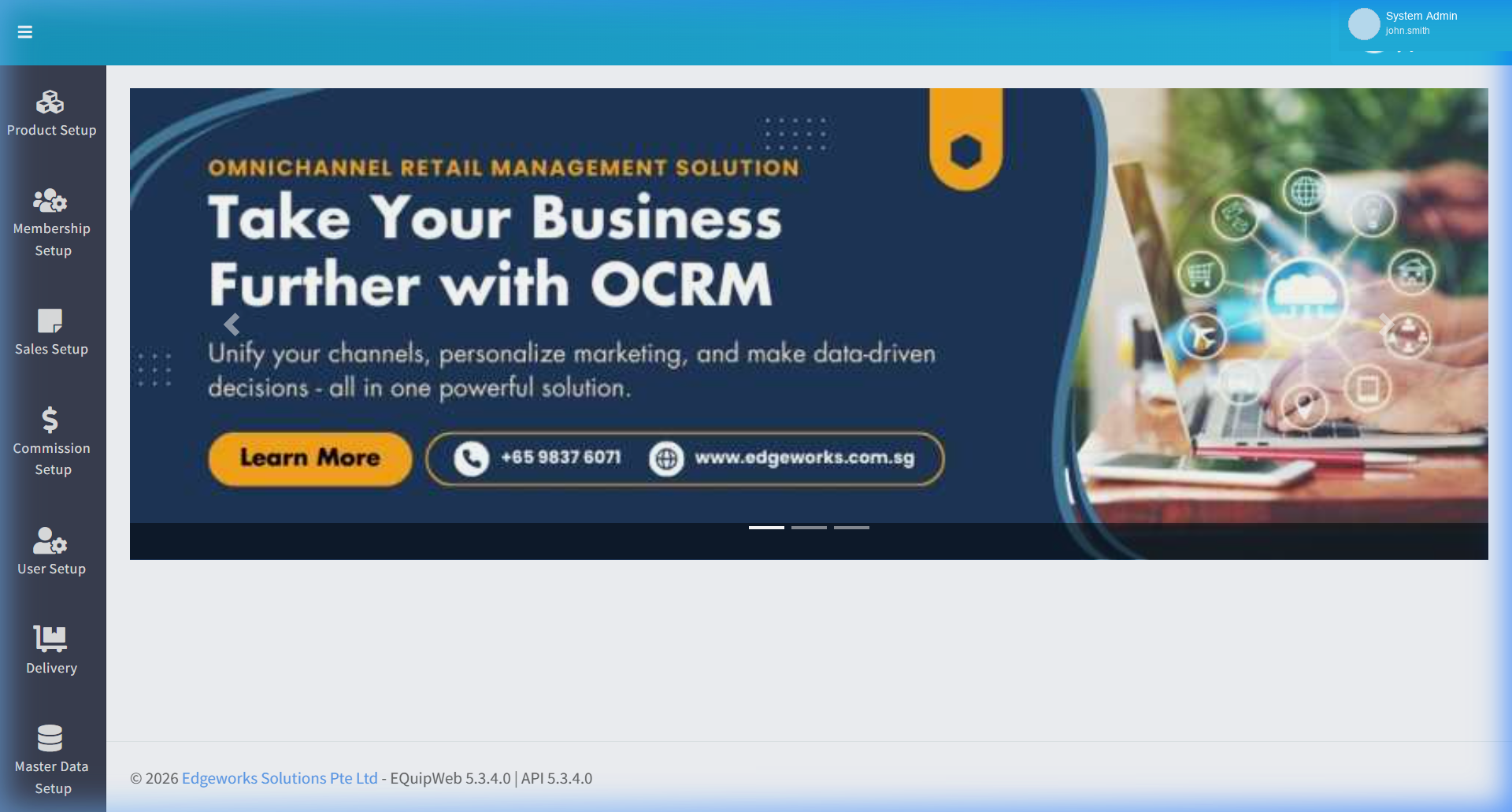
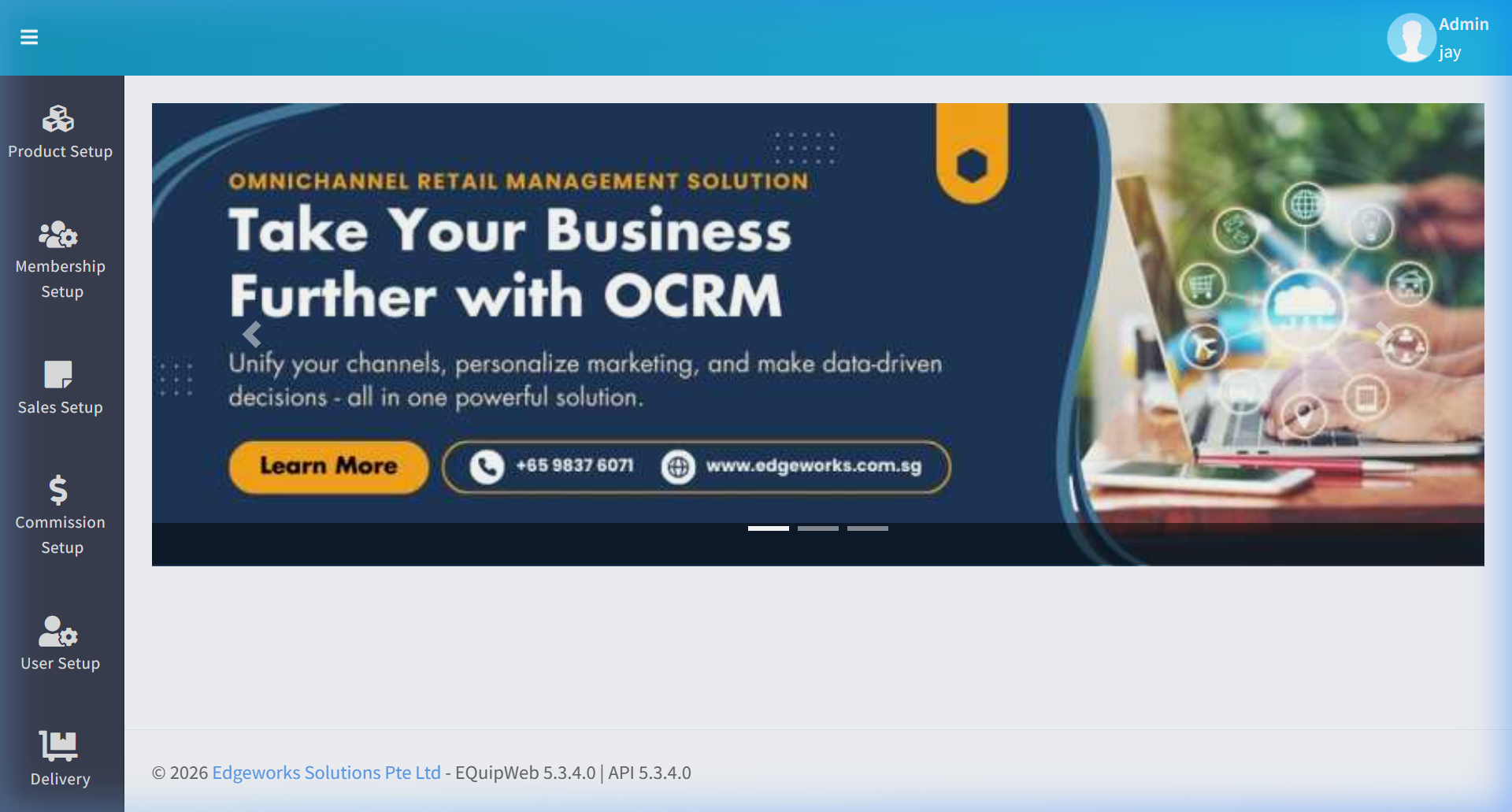
The Main Portal is the first page you see after logging into EQuipWeb. It provides a high-level overview of your business with key metrics, quick-access shortcuts, and navigation to all modules.
When to use this: When you want to understand what the dashboard shows after login.
Prerequisites
- User must have appropriate role permissions (see Access & Permissions above)
Main Portal Dashboard
📝 General Description
The Main Portal acts as the central hub for all backend operations. It provides one-click access to the most commonly used modules via the sidebar navigation.
Dashboard Components
Navigation Sidebar
The left sidebar provides access to all EQuip modules:
| Section | Modules |
|---|---|
| Product Setup | Product List, Categories, Departments, Promotions, Bundles, Collections, Attributes, Outlet Pricing, Stock Templates, Virtual Stock, Warehouse Mapping, Barcode Printing |
| Membership Setup | Member List, Groups, Benefits, Referrals, SVC, Campaigns, Auto-Drive, Broadcast, Integration |
| Sales Setup | Payment Modes, Discounts, Surcharges, GST, Vouchers, Hotkeys, Currency, Exchange Rates, Online Sales, Simulate Sales |
| Commission Setup | Commission List |
| User Setup | User List, Roles, Role Privileges, Privileges, Locked Users |
| Delivery | Delivery Orders |
| Master Data | Terminal Status, POS Setup, Outlet Setup, Inventory Location, Outlet Group, Inventory Location Group, POS Order Integration, Supplier Setup, Company Setup, Stock Out Reason |
| Menu Management | Menu Builder, Recipe Instructions, Time Windows |
| QR Online Ordering | Menu Setup, Online Menu, Ordering Setup, Payment Gateway, Layout Setup |
| Data Importer | Product, Membership, Promotion, Material, Alt Barcode, Supplier Product, Low Qty, Virtual Stock, Data Exporter |
| Settings | Feature Setup, Company Setup, Custom Field, App Command, Applications, Banner Display, Webhook, Membership Compulsory, POS Terminal Settings |
Navigating the Portal
How to Access a Module
- Log in to EQuipWeb at your tenant URL (e.g.,
t1.equipweb.biz/yoursite/). - Use the left sidebar to navigate — hover over a module icon to expand it.
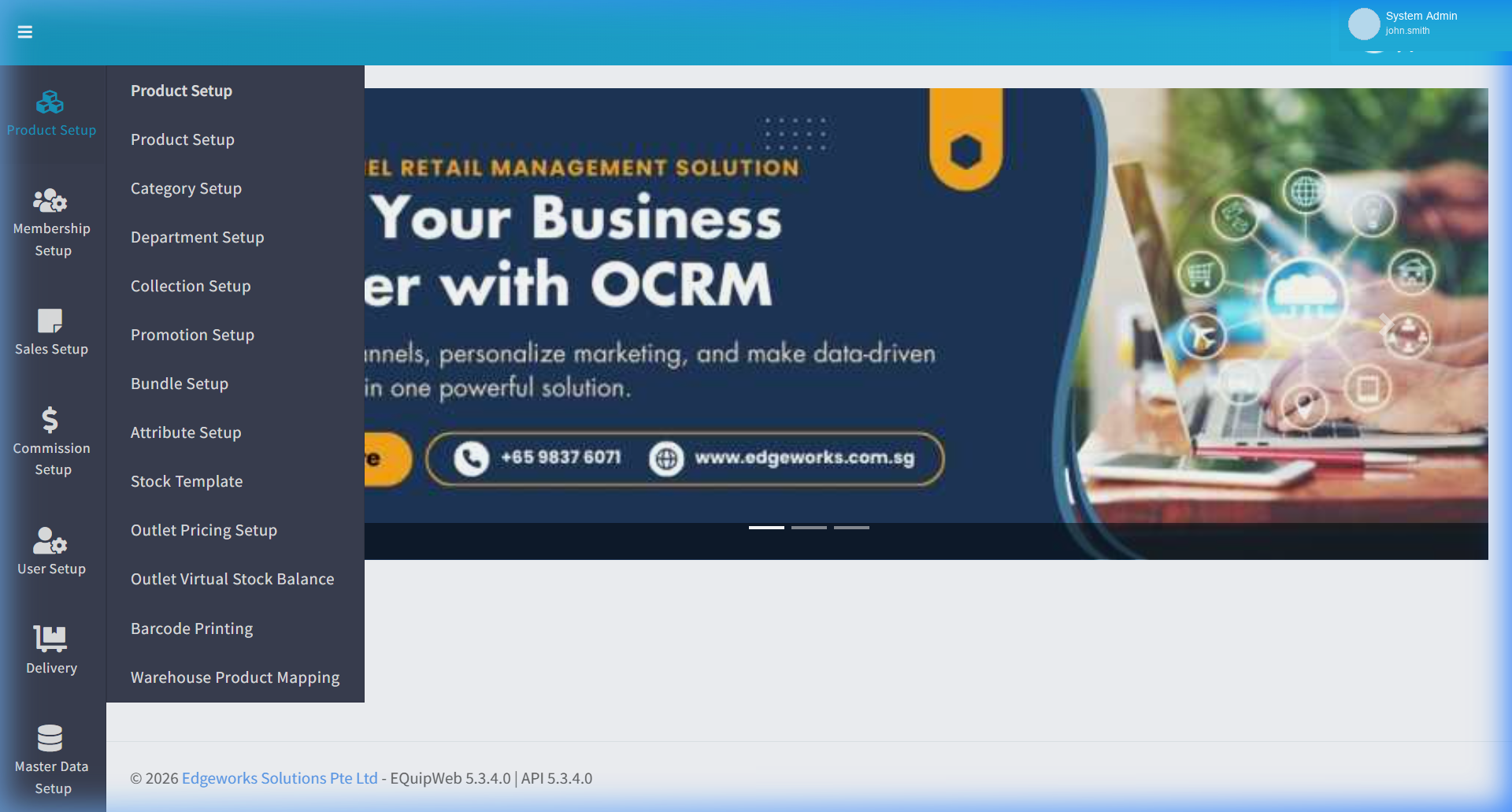
- Click on the specific module page from the flyout menu to open it.
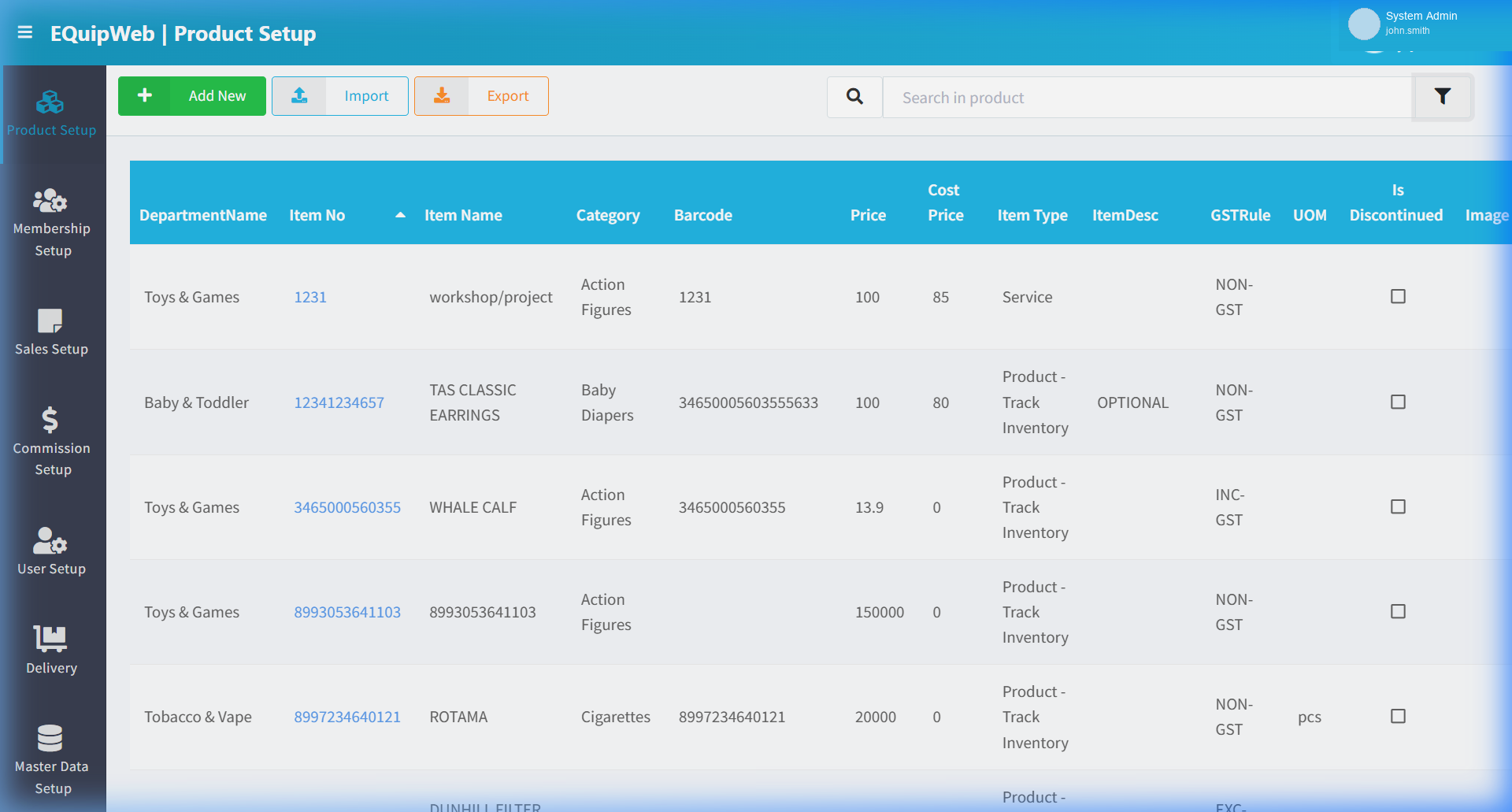
- The header bar at the top shows your current page name (e.g., "EQuipWeb | Product Setup").
How to Search
- Use the search bar in the top-right area of any list page to quickly filter records by keyword.
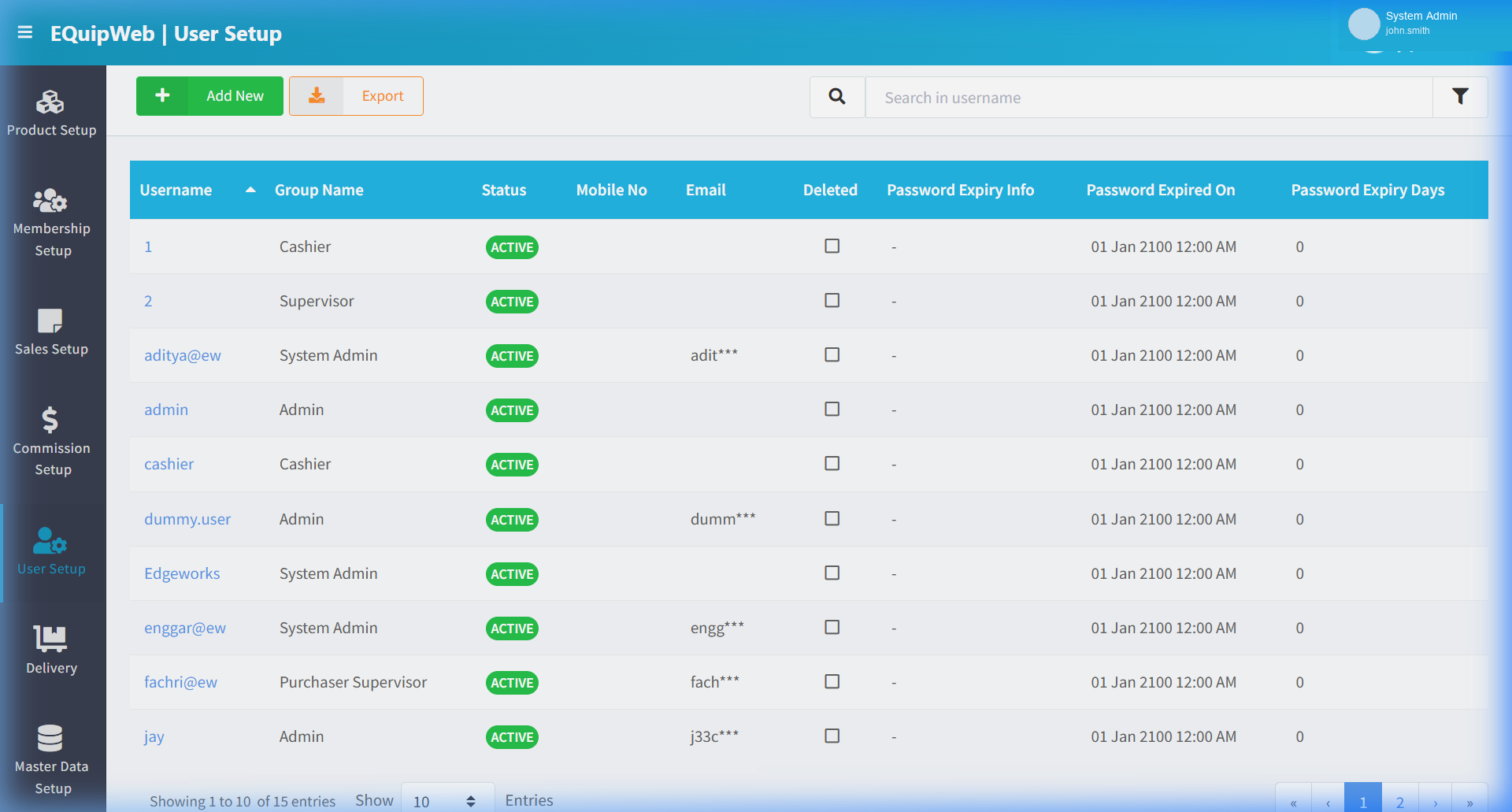
- Type a keyword (e.g., a username) and the list updates instantly to show matching results.
How to Switch Between Modules
- Click any module in the sidebar — the previous page is replaced.
- Use browser back/forward to navigate between recently visited pages.
- The sidebar highlights the currently active module.
💡 Tips
[!TIP] Bookmark your most-used pages in your browser for quick access. The most frequently used pages are typically Product List, Membership List, and Reports.
[!NOTE] The dashboard tiles only show data from synced POS terminals. Check Terminal Status (Section 8.1) if the numbers look unexpected.
Access & Permissions
| Role | View | Create | Edit | Delete |
|---|---|---|---|---|
| Admin | Yes | Yes | Yes | Yes |
| Supervisor | Yes | Yes | Yes | No |
| Cashier | No backend access | — | — | — |
[!NOTE] Exact permissions depend on the Privileges Setup configured for each role. Contact your administrator if you cannot access this page.
Expected Result: Changes are saved successfully and reflected across the system after the next POS sync.
Field Reference
| Field | Required | Description |
|---|---|---|
| Name / Title | Yes | The display name for this record |
| Status / Active | — | Whether this record is active in the system |
| Created Date | Auto | System-generated creation timestamp |
| Modified Date | Auto | System-generated last modification timestamp |
[!NOTE] Additional fields specific to this page are documented in the sections above. The table above shows common fields present across most pages.
Business Rules
- Records that are linked to active transactions or other modules cannot be permanently deleted
- Changes made here will take effect on POS terminals after the next sync
- Deleted records can be restored from the list using the Show Deleted filter
- All changes are logged with the user who made them and the timestamp
FAQ
Q: I forgot my password — how do I reset it? A: Contact your system administrator to reset your password from User Setup > User List.
Q: Why can't I see all menus in the sidebar? A: Your role may not have permissions for all modules. Contact your administrator to check your assigned privileges.
Troubleshooting
| Issue | Possible Cause | Solution |
|---|---|---|
| Cannot save the record | Required fields are empty or invalid | Check all fields marked with * and fill in valid data |
| Record not appearing in POS | POS terminal has not synced yet | Wait for the next sync cycle or manually trigger sync from Terminal Status |
| Cannot delete the record | Record is being used by other modules | Check if the record is linked to active transactions, products, or other settings |
| Changes not taking effect | Browser cache showing old data | Refresh the page (Ctrl+F5) or clear browser cache |
| "Duplicate" error on save | A record with the same name/code already exists | Search the list (including deleted records) for duplicates |
| Page not loading | Session expired or network issue | Log out and log back in. Check your internet connection |
Related Menus
- User Setup > User List — account management
- User Setup > Role Setup — role assignment
- Setting > Feature Setup — system feature toggles
Open Questions / Confirmation Needed
[!NOTE] The following items may vary depending on your system version and configuration:
- Exact permission settings depend on your Privileges Setup configuration
- Sync timing to POS terminals depends on network conditions and sync schedule
- Some features may require additional licensing or module activation
- Field behavior may differ between EQuip versions
If you encounter behavior not described in this manual, contact your system administrator or EQuip support team.
Related Articles
Report Portal Overview
? Report Portal Report Portal — Module Overview and Navigation GuideHow to Check the Transaction Report
This guide shows you how to open, filter, and export the Transaction Report in the EQuip Report Portal. Use it to review sales, voided, and refunded transactions and to export the data as CSV, Excel, PDF, or Flat File. 1. Open the Transaction Report ...Applications
? Backend — EQuipWebRetail ModeSetting Chapter 12: Setting — 12.6 Applications (Installer) The Applications page shows all the apps and modules available for your EQuip system. From here, you can see which apps are installed, check for updates, and ...Profile & Account
? Backend — EQuipWebRetail ModeChapter 1: Getting Started Chapter 1: Getting Started — 1.3 Profile & Account Use Account to manage and configure this feature in your EQuipWeb system. The Profile section is accessed from the top-right corner of any ...Membership Integration Settings
? Backend — EQuipWebRetail ModeMembership Setup Chapter 3: Membership Setup — 3.4 Membership Integration Settings Use Membership Integration Settings to connect your EQuip loyalty system with external CRM or marketing platforms. This allows member ...