Online Sales Order
Sales Setup — 4.8 Online Sales Order
Use Order to manage and configure this feature in your EQuipWeb system.
The Online Sales Order page shows all orders coming in from your connected delivery platforms (GrabFood, Foodpanda, etc.). You can view order details, check statuses, and manage fulfillment from here.
When to use this: When you need to view, process, or manage orders received from online sales channels.
Prerequisites
- Online Sales Channel configured
- Orders received from online platform
Order List
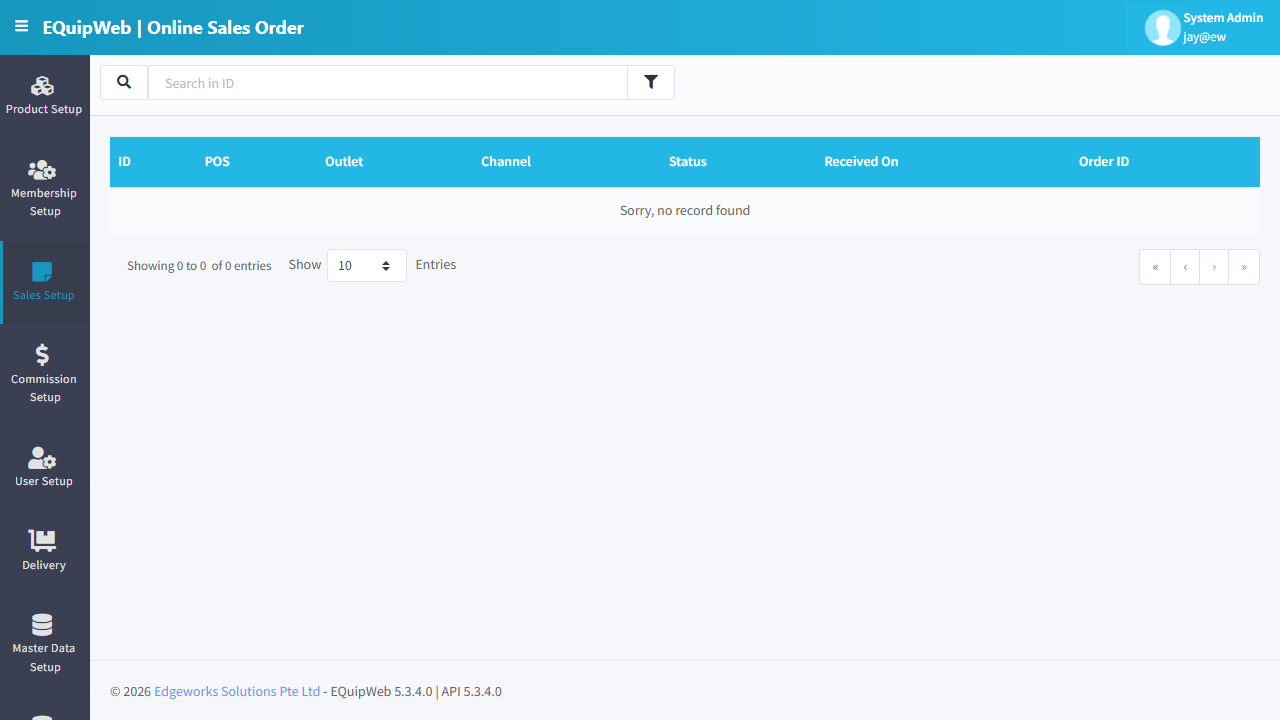
📝 General Description
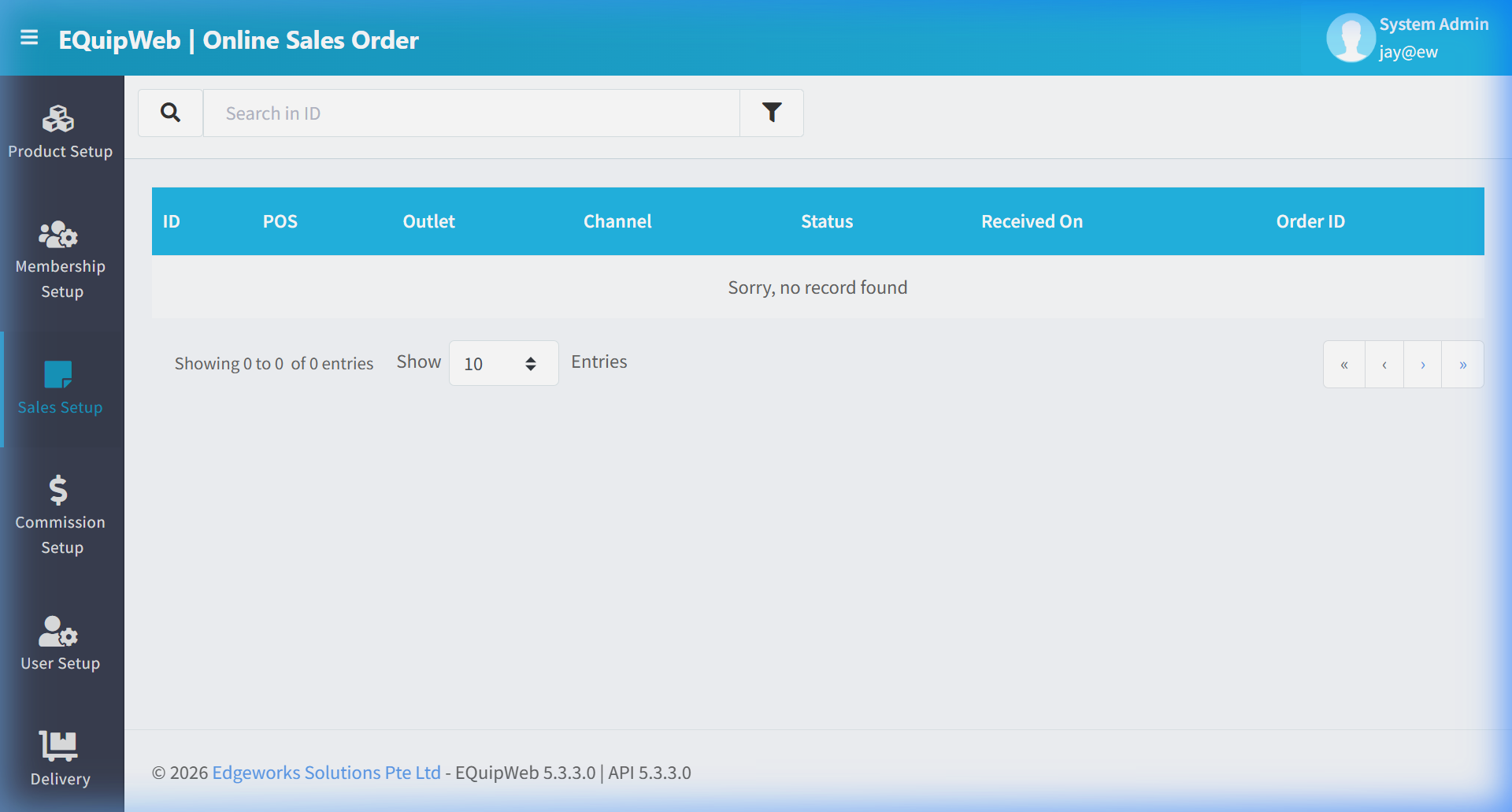
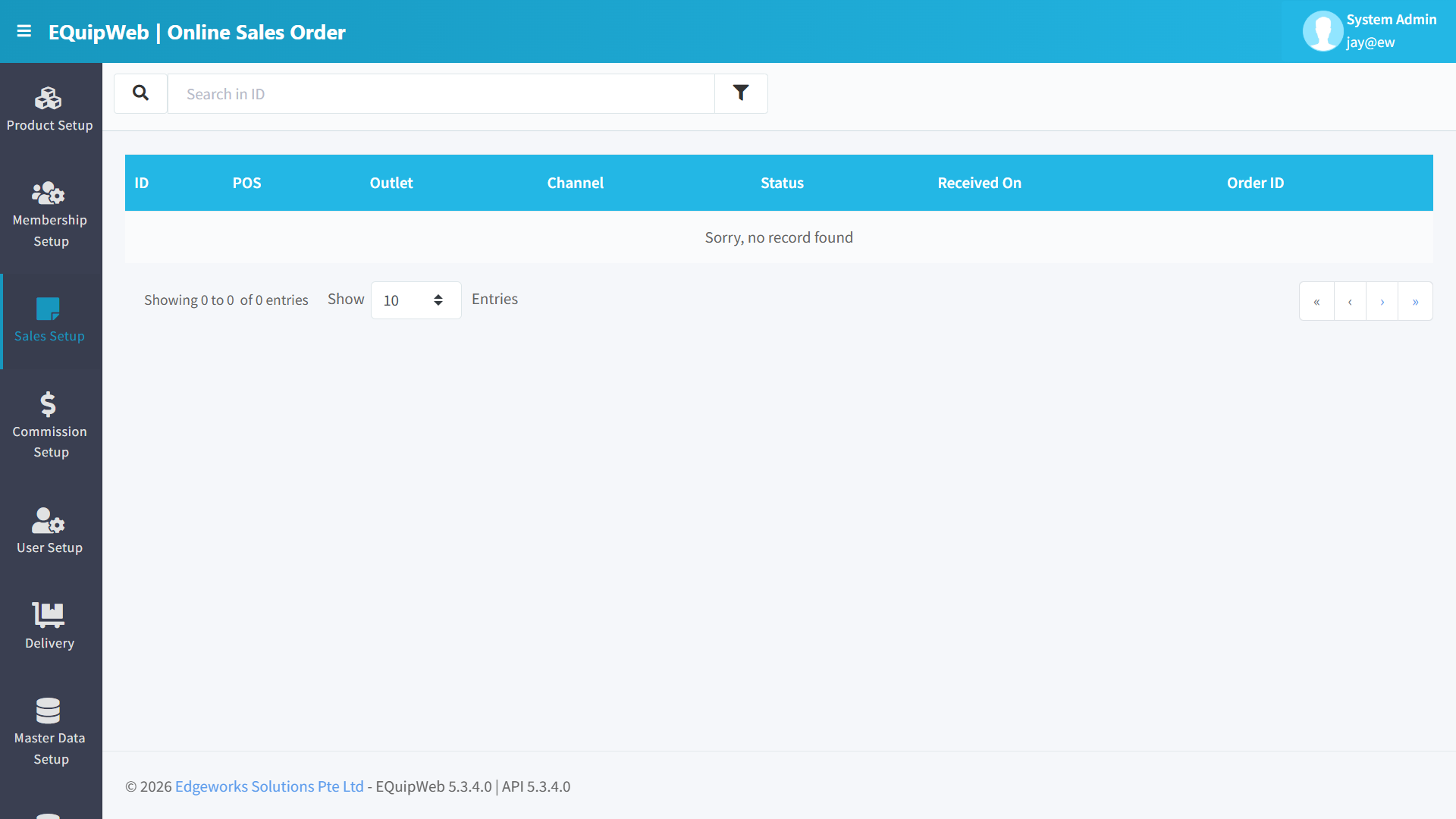
The list displays all incoming online orders with their status, channel source, and assigned outlet. In the screenshot above, the table shows "Sorry, no record found" — meaning no online orders have been received yet (the staging environment has no active channel pushing orders).
⚙️ Configuration Guide & UI Elements
- 🔴 1. Search Bar
- Element Type: Input Field (
Search in ID) - Function: Filters by order ID or order number.
- Element Type: Input Field (
- 🔴 2. Filter Icon (🔽)
- Element Type: Funnel button
- Function: Opens advanced filter panel to filter by channel, status, date range, or outlet.
📊 Column Descriptions
| Column | Description | Example |
|---|---|---|
| ID | Internal system order ID (clickable — opens detail) | OSO-00001 |
| POS | POS terminal that processed/will process the order | POS-001 |
| Outlet | The outlet assigned to fulfill this order | Orchard Road Store |
| Channel | Source platform | GrabFood, EQuipOrdering |
| Status | Current order lifecycle status — see below | Pending, Accepted |
| Received On | When the order was received by EQuip | 18 Jun 2026 10:30 AM |
| Order ID | External reference number from the channel | GF-20260618-001 |
📋 Order Status Lifecycle
| Status | Meaning | What Happens at POS |
|---|---|---|
| Pending | Order received, awaiting acceptance. | Notification appears on POS screen. Staff must accept or reject. |
| Accepted | Staff accepted the order. | Order moves to kitchen/preparation queue. |
| Preparing | Order is being prepared. | Timer starts for estimated completion. |
| Ready | Order is ready for pickup/delivery. | Channel is notified (for delivery platforms). |
| Completed | Order fulfilled and payment confirmed. | Sales transaction is recorded. |
| Rejected | Staff rejected the order. | Channel is notified. No sales transaction created. |
| Cancelled | Customer or channel cancelled the order. | No sales transaction. Refund handled by channel. |
Use Order to manage and configure this feature in your EQuipWeb system.
Order Detail (View)
Click an ID link to view the full order details:
Order Info (Read-Only)
| Field | Description |
|---|---|
| Channel | Source channel name (e.g., GrabFood) |
| Order No | External reference number |
| Order Date | When the customer placed the order |
| Status | Current lifecycle status |
| Customer Name | Customer's name from the channel |
| Total Amount | Order total after all discounts |
| To Outlet | Which outlet fulfills this order |
Order Items Table
| Column | Description |
|---|---|
| Item Name | Product ordered |
| Quantity | Number of items |
| Unit Price | Price per item |
| Amount | Line total (Qty × Unit Price) |
| Remark | Special instructions from customer (e.g., "No ice", "Extra spicy") |
Order History Timeline
Shows all status changes with timestamps. This provides a full audit trail:
10:30 AM — Order Created (by GrabFood)
10:31 AM — Status → Pending
10:32 AM — Status → Accepted (by admin@store)
10:45 AM — Status → Ready
10:50 AM — Status → Completed
💡 Example
Scenario: A GrabFood order arrives for your café.
- Customer orders "Iced Latte × 2" and "Croissant × 1" via GrabFood app.
- GrabFood sends the order to EQuip via the webhook configured in Online Sales Channel.
- The order appears here with status Pending.
- Your staff sees the notification on POS → clicks Accept.
 5. Status changes to Accepted → Preparing → Ready.
6. GrabFood driver picks up the order → status changes to Completed.
5. Status changes to Accepted → Preparing → Ready.
6. GrabFood driver picks up the order → status changes to Completed.
 7. A sales transaction is automatically created in EQuip for reporting.
[!NOTE] This page is for viewing and tracking only. Orders cannot be created manually here. To set up online ordering, configure a channel in Online Sales Channel first.
Use Order to manage and configure this feature in your EQuipWeb system.
Access & Permissions
| Role | View | Create | Edit | Delete |
|---|---|---|---|---|
| Admin | Yes | Yes | Yes | Yes |
| Supervisor | Yes | Yes | Yes | No |
| Cashier | No backend access | — | — | — |
[!NOTE] Exact permissions depend on the Privileges Setup configured for each role. Contact your administrator if you cannot access this page.
Use Order to manage and configure this feature in your EQuipWeb system.
How to View an Online Sales Order
- Navigate to Sales Setup > Online Sales Order from the sidebar menu.
- The list shows all orders received from online channels (e.g., Shopee, Lazada, GrabFood).
- Use the search bar or filters to find specific orders by order number, date, or channel.
- Click the order number link (blue text) to view full order details.
How to Process an Online Sales Order
- Open the order by clicking its order number.
- Review the order items, customer details, and payment status.
- Update the Order Status (e.g., Pending → Processing → Fulfilled).
- Click Save to update the status.
Expected Result: The order status is updated. Fulfilled orders sync back to the online channel.
FAQ
Q: Why is this payment mode not appearing on the POS? A: Check that the payment mode is marked as Active and assigned to the correct outlet. The POS also needs to sync.
Q: Can I edit a completed sales transaction? A: No. Completed transactions cannot be edited. You can void the transaction and create a new one if correction is needed.
Q: How do I set up a new tax rate without affecting past transactions? A: Create a new GST rate with a future Commence Date. The system will automatically apply the old rate to past transactions and the new rate from the effective date.
Use Order to manage and configure this feature in your EQuipWeb system.
Troubleshooting
| Issue | Possible Cause | Solution |
|---|---|---|
| Cannot save the record | Required fields are empty or invalid | Check all fields marked with * and fill in valid data |
| Record not appearing in POS | POS terminal has not synced yet | Wait for the next sync cycle or manually trigger sync from Terminal Status |
| Cannot delete the record | Record is being used by other modules | Check if the record is linked to active transactions, products, or other settings |
| Changes not taking effect | Browser cache showing old data | Refresh the page (Ctrl+F5) or clear browser cache |
| "Duplicate" error on save | A record with the same name/code already exists | Search the list (including deleted records) for duplicates |
| Page not loading | Session expired or network issue | Log out and log back in. Check your internet connection |
Use Order to manage and configure this feature in your EQuipWeb system.
Related Menus
- Product Setup > Product List — products linked to pricing
- Master Data > Outlet Setup — outlet-specific payment modes
- Master Data > POS Setup — POS terminal configuration
- Setting > Feature Setup — enable/disable sales features
Use Order to manage and configure this feature in your EQuipWeb system.
Open Questions / Confirmation Needed
[!NOTE] The following items may vary depending on your system version and configuration:
- Exact permission settings depend on your Privileges Setup configuration
- Sync timing to POS terminals depends on network conditions and sync schedule
- Some features may require additional licensing or module activation
- Field behavior may differ between EQuip versions
If you encounter behavior not described in this manual, contact your system administrator or EQuip support team.
Expected Result: Changes are saved successfully and reflected across the system after the next POS sync.
Related Articles
Online Sales Channel
? Backend — EQuipWebRetail ModeSales Setup Sales Setup — 4.7 Online Sales Channel Use Online Sales Channel to connect your EQuip system with external delivery platforms — like GrabFood, Foodpanda, or Shopee. Orders placed on these platforms will ...Online Menu Setup
? Backend — EQuipWebRetail ModeQR Online Ordering Setup Chapter 9: QR Online Ordering — 9.2 Online Menu Setup Use Online Menu Setup to create the menus your customers see when they scan a QR code to order. You can create different menus for ...Delivery Order List
? Backend — EQuipWebRetail ModeDelivery Chapter 7: Delivery — 7.1 Delivery Order Use Order to manage and configure this feature in your EQuipWeb system. The Delivery Order List shows all your delivery orders in one place. Track order statuses, view ...POS Order Integration
? Backend — EQuipWebRetail ModeMaster Data Setup Chapter 8: Master Data Setup — 8.7 POS Order Integration Use POS Order Integration to connect your POS terminals with external ordering systems. This is where you set up how orders from third-party ...Simulate Sales
? Backend — EQuipWebRetail ModeSales Setup Sales Setup — 4.10 Simulate Sales Use Simulate Sales to test how a transaction would look before actually processing it. Enter products and see how discounts, promotions, taxes, and surcharges are applied — ...