Surcharge Setup
Sales Setup — 4.11 Surcharge Setup
Use Surcharge Setup to add extra charges that apply automatically — like a 10% service charge or a public holiday surcharge. Once set up, the surcharge is added to every qualifying transaction at the POS.
When to use this: When you need to create or manage additional charges (e.g., service charge, delivery fee, packaging fee).
Prerequisites
- GST Setup completed if surcharge is taxable
Surcharge List
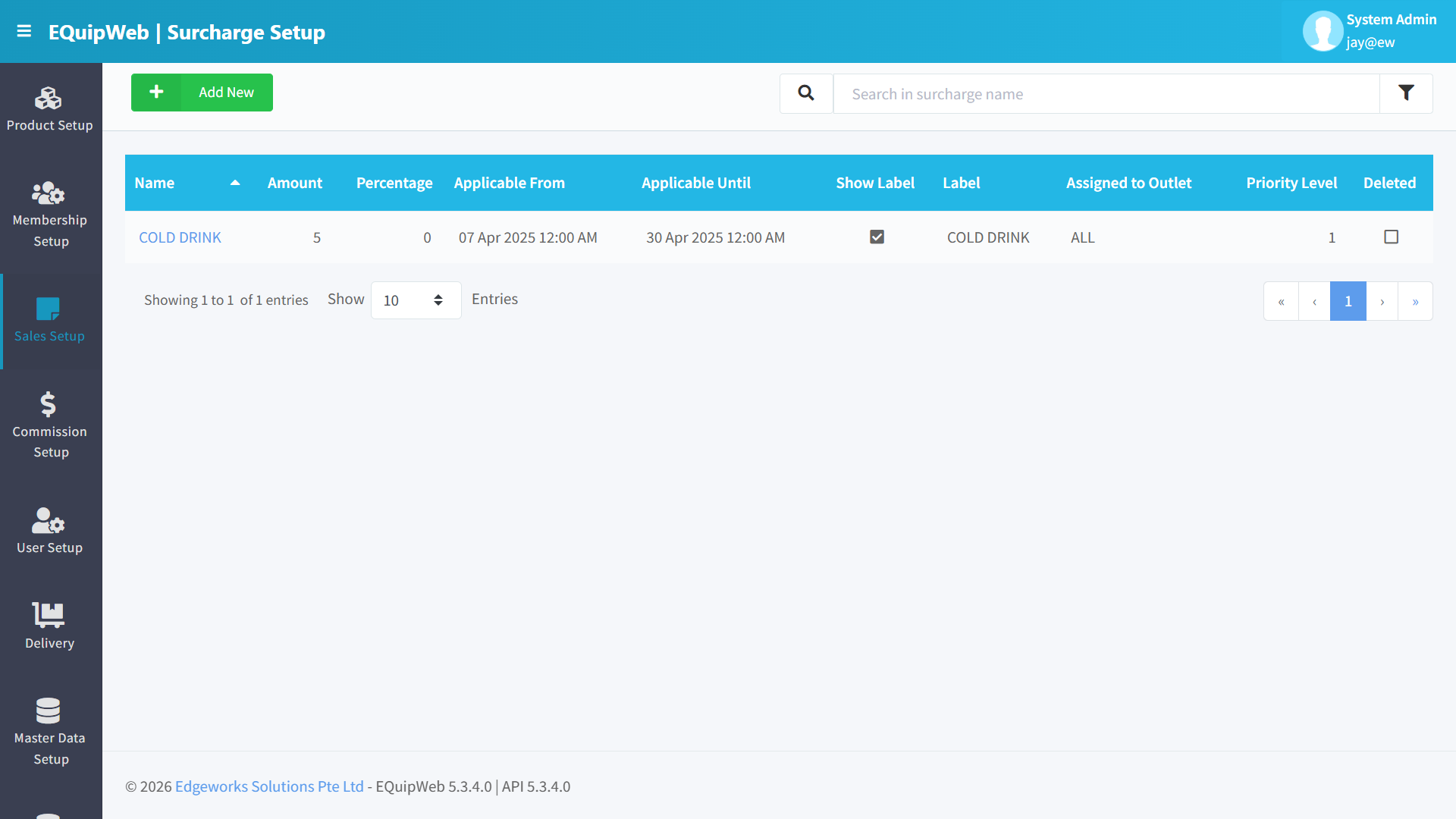
📝 General Description
The list displays all configured surcharges. Use this page to manage automatic charges added on top of the bill total at POS.
⚙️ Configuration Guide & UI Elements
- 🔴 1. Add New — Opens the form to create a new surcharge.
- 🔴 2. Search Bar — Filters by surcharge name.
- 🔴 3. Filter Icon (🔽) — Opens advanced filter (Show Deleted toggle).
📊 Column Descriptions
| Column | Description | Example |
|---|---|---|
| Surcharge Name | Name (clickable — opens edit form) | Service Charge, PH Surcharge |
| Description | Additional details | 10% service charge for dine-in |
| Surcharge Value | Percentage (%) or fixed amount ($) | 10, 5.00 |
| Is Taxable | Whether GST is calculated on top of this surcharge | ☑ / ☐ |
| Deleted | Hidden/deleted status | ☐ / ☑ |
Add / Edit Surcharge
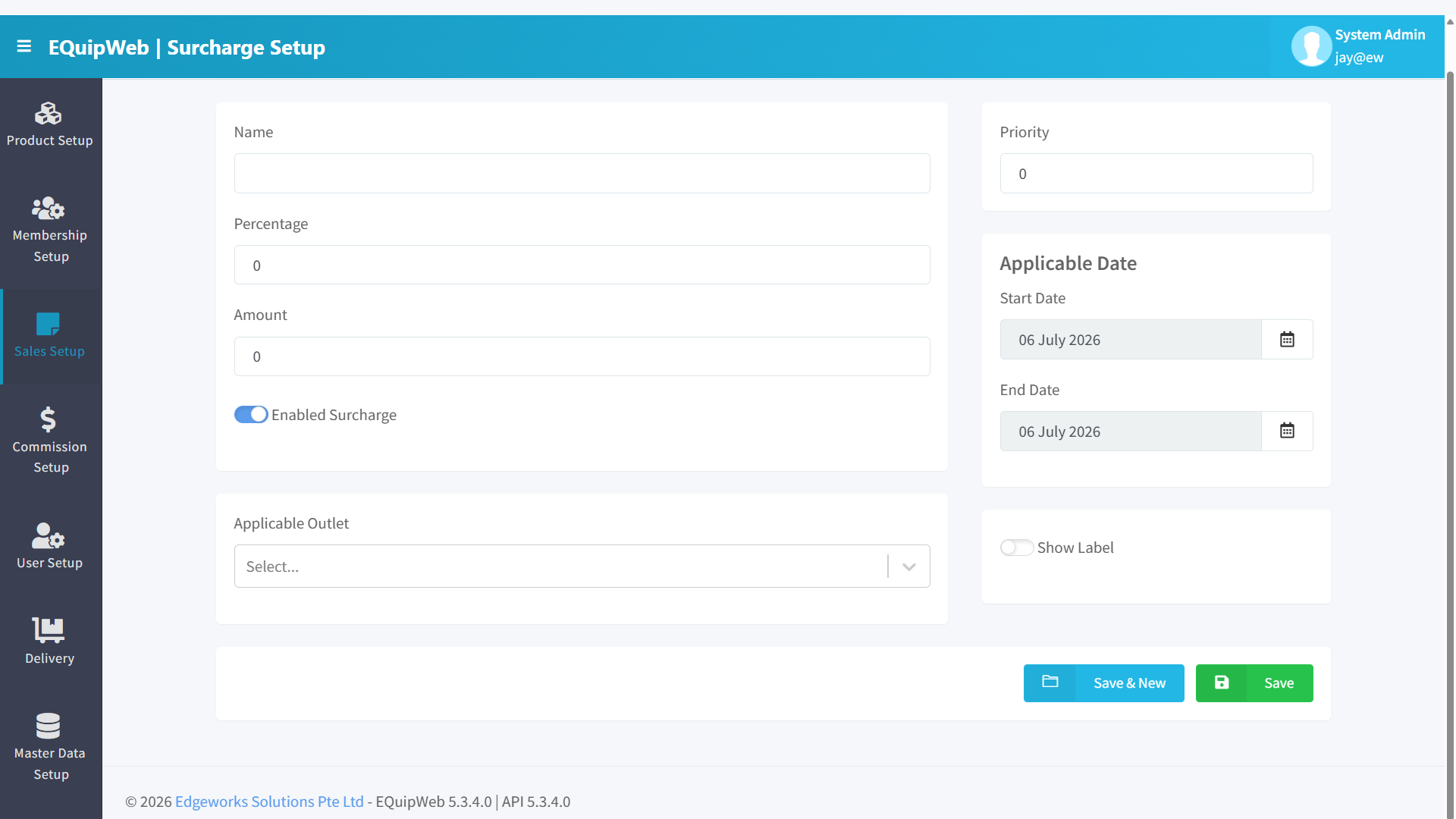
Click + Add New or click a Surcharge Name link to open the form:
Main Section
| Field | Type | Required | Description |
|---|---|---|---|
| Surcharge Name | Text | Yes | Unique name for the surcharge. |
| Description | Textarea | No | Detailed description for internal reference. |
| Surcharge Type | Dropdown | Yes | See type comparison below. |
| Surcharge Value | Number | Yes | The percentage or dollar amount. |
| Is Taxable | Toggle | No | See toggle behavior below. |
🔀 Surcharge Type Comparison
| Type | How It Works | Example |
|---|---|---|
| Percentage | Surcharge is calculated as a % of the subtotal. | Subtotal $100 + 10% surcharge = $10.00 surcharge. |
| Fixed Amount | A flat dollar amount is added regardless of subtotal. | Subtotal $100 + $5 delivery fee = $5.00 surcharge. Subtotal $10 + $5 = still $5.00. |
🔀 Toggle Behavior — Is Taxable
| State | What Happens | Example |
|---|---|---|
| ON ✅ | GST is calculated on top of the surcharge amount. The surcharge itself becomes part of the taxable amount. | Subtotal $100 + 10% service charge ($10) = $110 → GST 9% on $110 = $9.90 tax. Total = $119.90. |
| OFF ❌ | The surcharge is tax-exempt. GST is only calculated on the product subtotal, not the surcharge. | Subtotal $100 → GST 9% on $100 = $9.00 → then add 10% service charge on $100 = $10. Total = $119.00. |
[!IMPORTANT] In Singapore, service charges are generally taxable (Is Taxable = ON). GST must be computed on the service charge amount. Check with your accountant for your specific jurisdiction.
Applicable Outlets Tab
| Field | Description |
|---|---|
| Applicable Outlets | Multi-select — choose which outlets apply this surcharge. Default: ALL outlets. Unselected outlets will NOT apply this surcharge. |
How to Edit a surcharge
- In the Surcharge Setup page, find the surcharge you want to change.
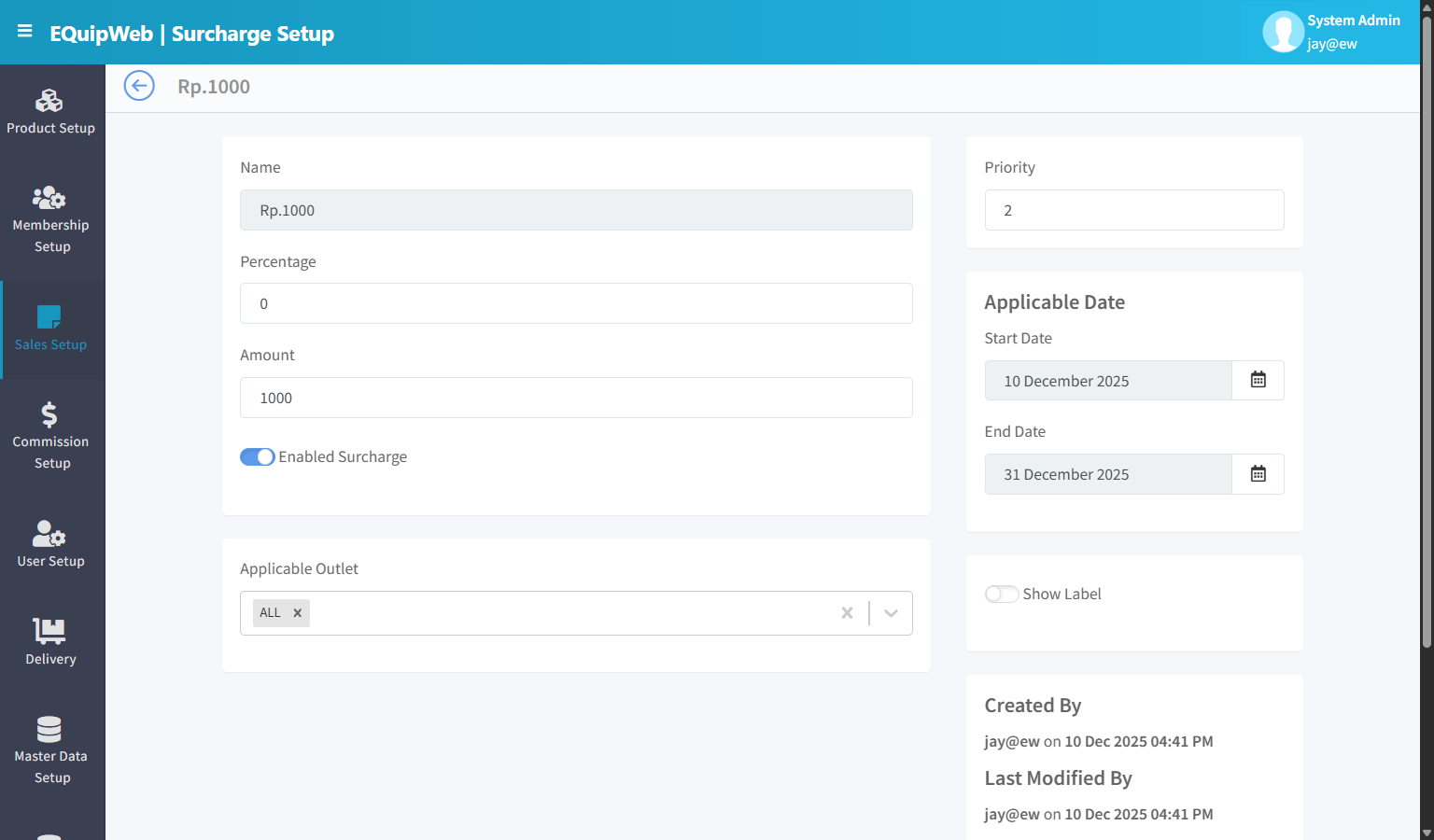
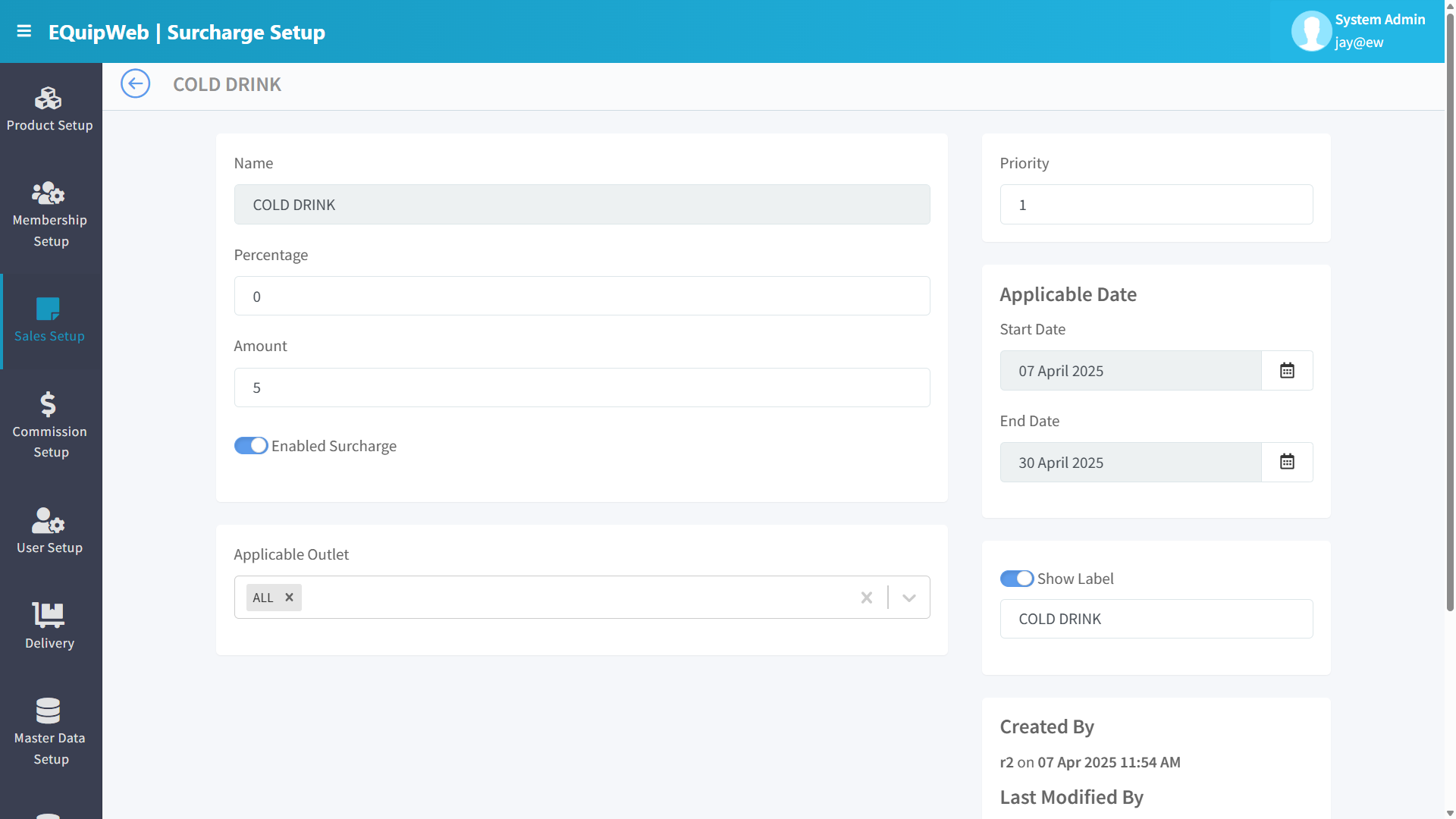
- Click the blue surcharge name link. The edit form opens — it looks the same as the "Add New" form, but all fields are already filled in with the current values.
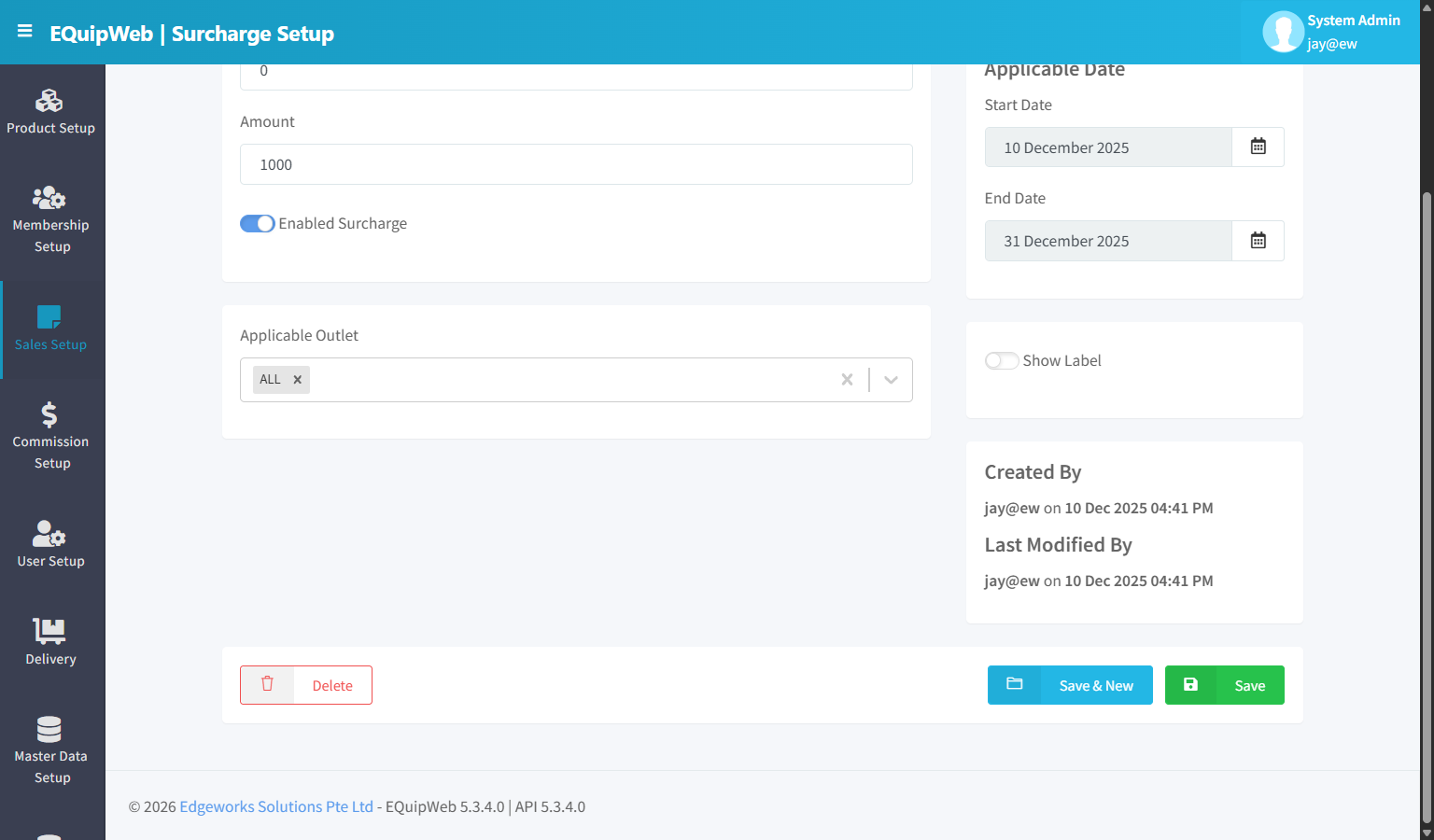
- Change the fields you need to update.
- Click Save to apply your changes.
Expected Result: The surcharge is saved and available to apply at POS.
[!TIP] To make changes, just click the name of any surcharge in the list — the same form opens with everything already filled in. Change what you need and click Save.
💡 Example
Example 1: F&B 10% Service Charge (Taxable)
| Setting | Value | Why |
|---|---|---|
| Surcharge Name | Service Charge | Standard F&B terminology |
| Surcharge Type | Percentage | Scales with bill amount |
| Surcharge Value | 10 | 10% service charge |
| Is Taxable | ON ✅ | GST applies to service charge in SG |
| Applicable Outlets | ALL | All dine-in outlets |
Receipt Example:
Subtotal:        $100.00
Service Charge:   $10.00
GST (9%):          $9.90
─────────────────────────
Total:           $119.90
Example 2: Public Holiday Surcharge ($2 fixed, non-taxable)
| Setting | Value | Why |
|---|---|---|
| Surcharge Name | PH Surcharge | Public Holiday |
| Surcharge Type | Fixed Amount | Flat fee regardless of bill |
| Surcharge Value | 2 | $2 per transaction |
| Is Taxable | OFF ❌ | Company absorbs the tax on this surcharge |
| Applicable Outlets | Orchard, Jurong | Only busy outlets |
Receipt Example:
Subtotal:        $50.00
GST (9%):         $4.50
PH Surcharge:     $2.00
─────────────────────────
Total:           $56.50
Example 3: Delivery Fee ($5 fixed, taxable)
| Setting | Value | Why |
|---|---|---|
| Surcharge Name | Delivery Fee | — |
| Surcharge Type | Fixed Amount | Flat delivery charge |
| Surcharge Value | 5 | $5 per delivery |
| Is Taxable | ON ✅ | GST applies to delivery in SG |
| Applicable Outlets | Online Store | Only for delivery orders |
Actions
| Action | When Available | Description |
|---|---|---|
| Save | Always | Saves the surcharge record |
| Save and New | Always | Saves then opens a blank form |
| Delete | Edit mode (not deleted) | Soft-deletes. Surcharge stops being applied at POS. |
| Restore | Edit mode (deleted) | Restores a safely deleted surcharge |
Access & Permissions
| Role | View | Create | Edit | Delete |
|---|---|---|---|---|
| Admin | Yes | Yes | Yes | Yes |
| Supervisor | Yes | Yes | Yes | No |
| Cashier | No backend access | — | — | — |
[!NOTE] Exact permissions depend on the Privileges Setup configured for each role. Contact your administrator if you cannot access this page.
How to Delete a Surcharge
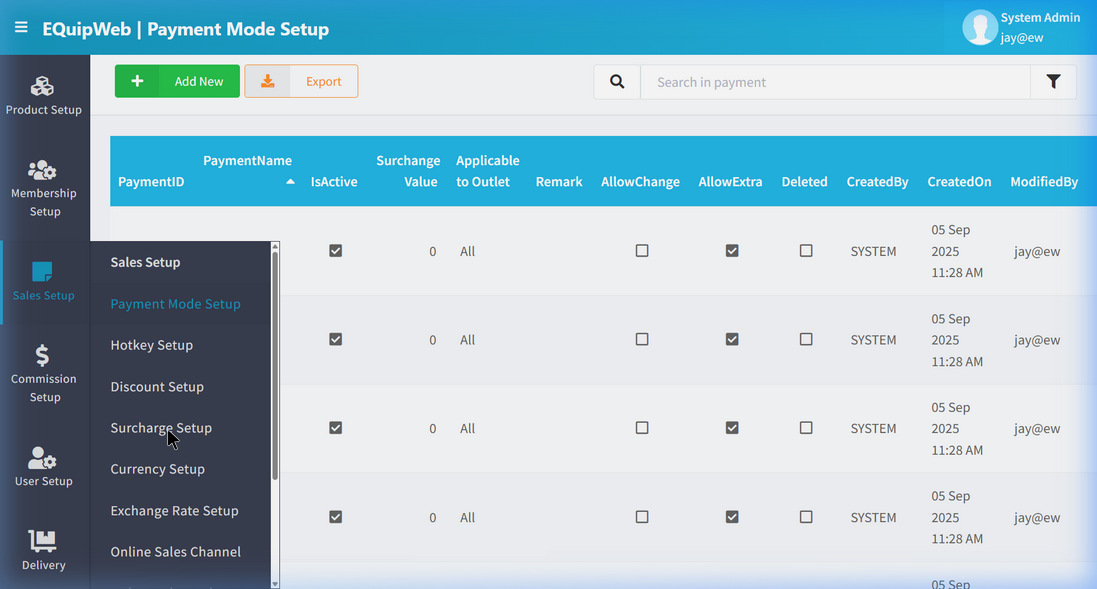
- Navigate to Surcharge Setup from the sidebar menu.
2. Click the name or code link (blue text) of the record you want to delete.
3. In the edit form, scroll down to the bottom.
4. Click the Delete button (red button).
5. A confirmation dialog appears — click Yes to confirm deletion.
Expected Result: The record is soft-deleted — it is hidden from the active list and POS terminals but can be restored later using the "Show Deleted" filter.
[!WARNING] Records linked to active transactions or other modules cannot be deleted. The system will display an error if deletion is not allowed.
How to Add a New Surcharge
- Navigate to Surcharge Setup from the sidebar menu.
-
Click the + Add New button (green button).
-
Fill in the required fields in the form.
-
Fill in any optional fields as needed.
-
Click Save to create the new surcharge.
✅ Expected Result: The new surcharge appears in the list and is available for use across the system.
FAQ
Q: Why is this payment mode not appearing on the POS? A: Check that the payment mode is marked as Active and assigned to the correct outlet. The POS also needs to sync.
Q: Can I edit a completed sales transaction? A: No. Completed transactions cannot be edited. You can void the transaction and create a new one if correction is needed.
Q: How do I set up a new tax rate without affecting past transactions? A: Create a new GST rate with a future Commence Date. The system will automatically apply the old rate to past transactions and the new rate from the effective date.
Troubleshooting
| Issue | Possible Cause | Solution |
|---|---|---|
| Cannot save the record | Required fields are empty or invalid | Check all fields marked with * and fill in valid data |
| Record not appearing in POS | POS terminal has not synced yet | Wait for the next sync cycle or manually trigger sync from Terminal Status |
| Cannot delete the record | Record is being used by other modules | Check if the record is linked to active transactions, products, or other settings |
| Changes not taking effect | Browser cache showing old data | Refresh the page (Ctrl+F5) or clear browser cache |
| "Duplicate" error on save | A record with the same name/code already exists | Search the list (including deleted records) for duplicates |
| Page not loading | Session expired or network issue | Log out and log back in. Check your internet connection |
Related Menus
- Product Setup > Product List — products linked to pricing
- Master Data > Outlet Setup — outlet-specific payment modes
- Master Data > POS Setup — POS terminal configuration
- Setting > Feature Setup — enable/disable sales features
Open Questions / Confirmation Needed
[!NOTE] The following items may vary depending on your system version and configuration:
- Exact permission settings depend on your Privileges Setup configuration
- Sync timing to POS terminals depends on network conditions and sync schedule
- Some features may require additional licensing or module activation
- Field behavior may differ between EQuip versions
If you encounter behavior not described in this manual, contact your system administrator or EQuip support team.
Related Articles
Privileges Setup
? Backend — EQuipWebRetail ModeUser Setup Chapter 6: User Setup — 6.4 Privileges Setup Use Setup to manage and configure this feature in your EQuipWeb system. Privileges Setup is the master list of all permissions available in the system. Each ...Company Setup
? Backend — EQuipWebRetail ModeMaster Data Setup Chapter 8: Master Data Setup — 8.9 Company Setup Use Company Setup (under Master Data) to enter your company's official business details — company name, registration number, address, and contact ...Role Setup
? Backend — EQuipWebRetail ModeUser Setup Chapter 6: User Setup — 6.2 Role Setup Use Role Setup to create job roles for your team — like "Cashier", "Supervisor", "Manager", or "Admin". Each role determines what a user can see and do in the system. ...Currency Setup
? Backend — EQuipWebRetail ModeSales Setup Chapter 4: Sales Setup — 4.8 Currency Setup Use Currency Setup to add the currencies your business accepts. If you only accept one currency (e.g., SGD), it's already set up for you. Multi-currency ...Ordering Setup
? Backend — EQuipWebRetail ModeQR Online Ordering Setup Chapter 9: QR Online Ordering — 9.3 Ordering Setup Use Ordering Setup to turn on QR ordering for each of your outlets and configure how it works — order availability, table numbers, pickup ...