Terminal Status
Chapter 8: Master Data Setup — 8.1 Terminal Status
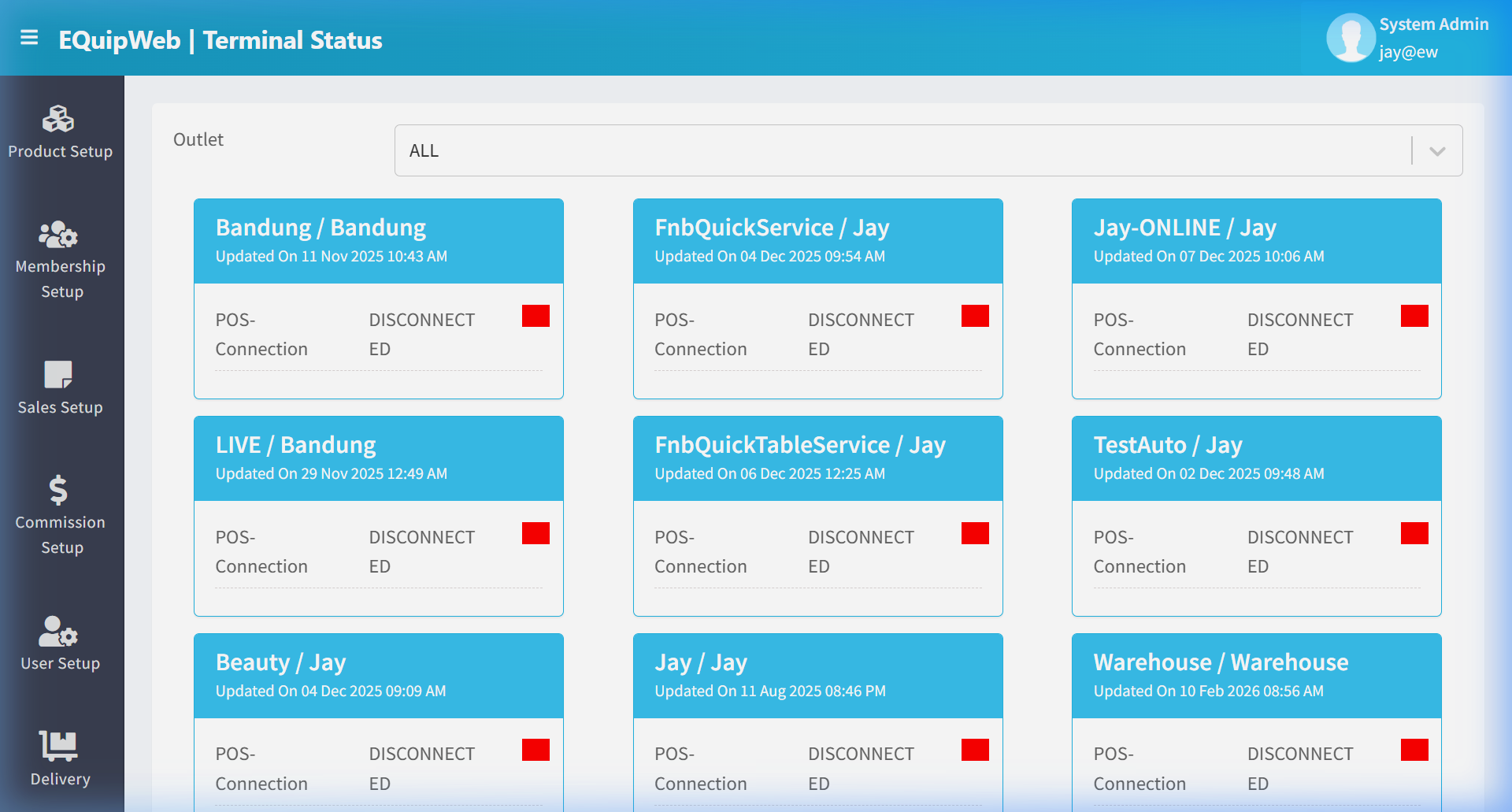
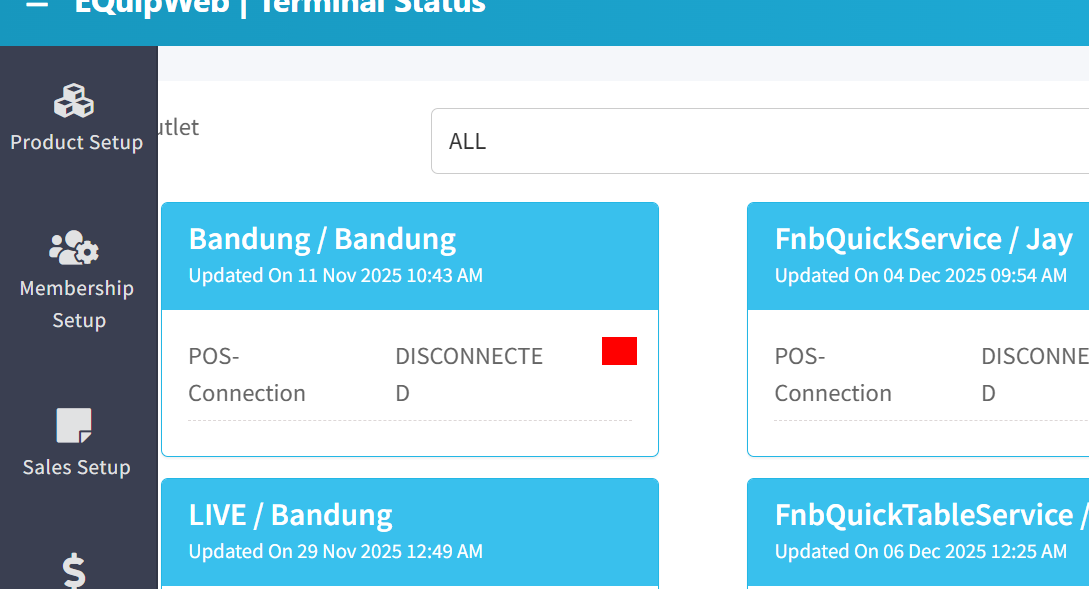
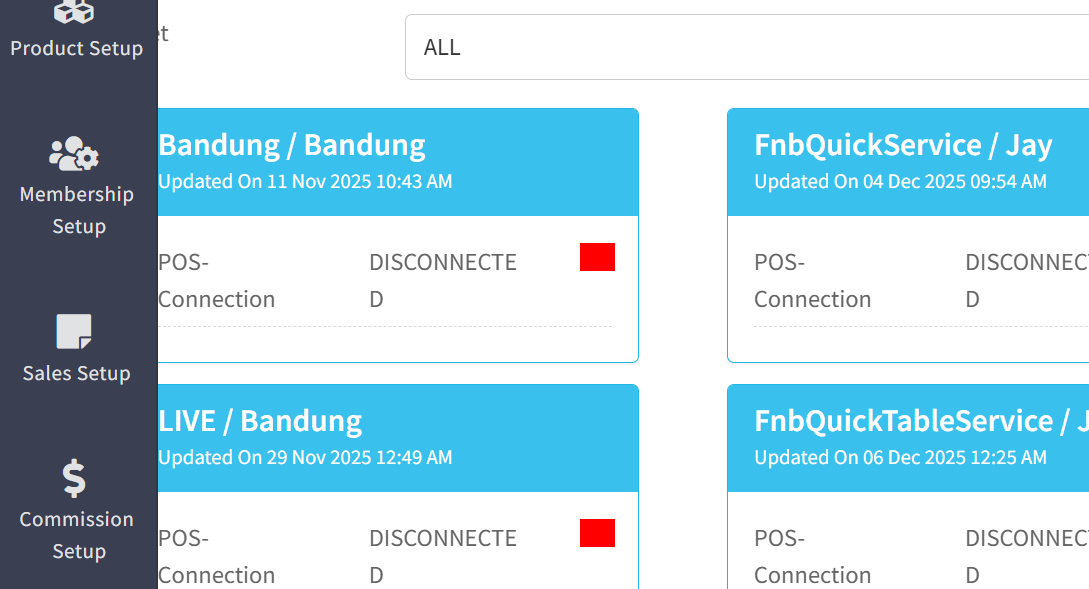
The Terminal Status page shows you the live status of all your POS terminals — which ones are online, which are offline, and when they last synced. Use this to quickly spot any terminals that may have connection issues.
When to use this: When you need to check which POS terminals are online, their last sync time, or current connection status.
Prerequisites
- POS terminals registered in POS Setup
Terminal Status Dashboard
📝 General Description
This is a monitoring page (not a data entry page). It provides a real-time overview of all POS terminal statuses — whether they're online, when they last synced, and if there's pending data in the queue. This is essential for IT support and end-of-day reconciliation.
⚙️ UI Elements
| Element | Type | Function |
|---|---|---|
| Refresh | Button | Manually refresh the status data |
| Auto-Refresh | Toggle | Enable automatic refresh every 30 seconds |
| Search Bar | Text Input | Filter by POS name or outlet |
8.1.1 Dashboard Columns
| Column | Description |
|---|---|
| POS Name | Terminal identifier (e.g., "ION-POS1") |
| Outlet | The outlet this terminal belongs to |
| Status | 🟢 Online = connected and active; 🔴 Offline = not connected |
| Last Sync | Timestamp of the last successful data synchronization |
| Pending Upload | Number of transactions waiting to be uploaded to the server |
| Pending Download | Number of updates waiting to be downloaded to the terminal |
| Version | WinPowerPOS software version running on the terminal |
| IP Address | Network IP of the terminal |
8.1.2 Status Indicators
| Status | Meaning | Action Required |
|---|---|---|
| 🟢 Online | Terminal is connected and syncing normally | None |
| 🔴 Offline | Terminal is not connected to the server | Check network connection, verify terminal is powered on |
| 🟡 Sync Pending | Terminal is online but has unsynced data | Wait for sync to complete or trigger manual sync |
| 🔴 Sync Error | Sync failed — data couldn't be uploaded/downloaded | Check error log, verify server connectivity |
8.1.3 How to Use Terminal Status
Checking Terminal Health
- Navigate to Master Data → Terminal Status.
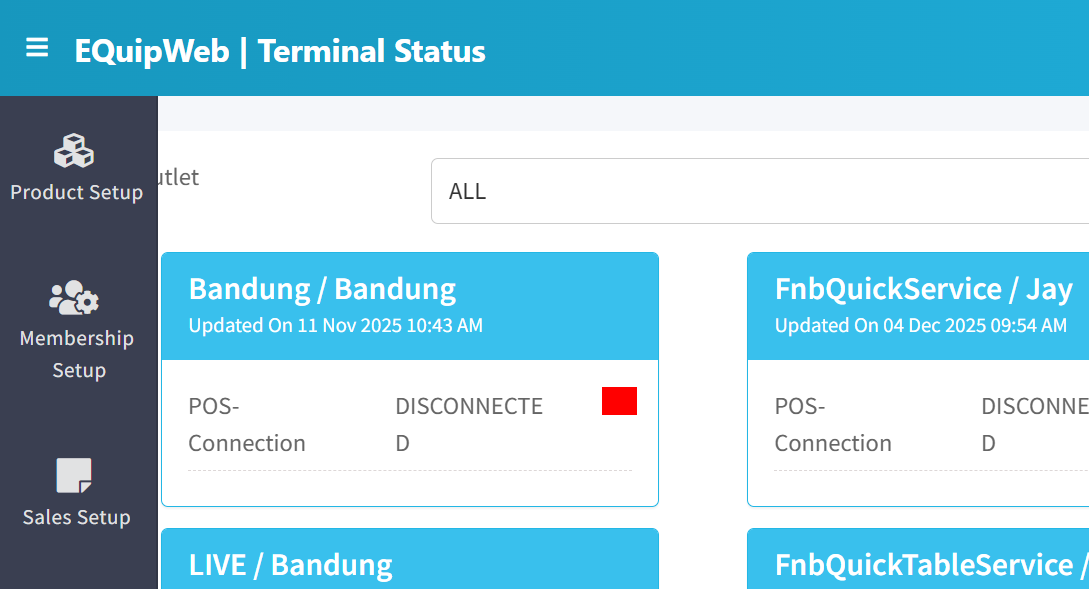 2. Review the dashboard — all terminals should show 🟢 Online.
3. Check Pending Upload — should be
2. Review the dashboard — all terminals should show 🟢 Online.
3. Check Pending Upload — should be 0 if all transactions have synced.
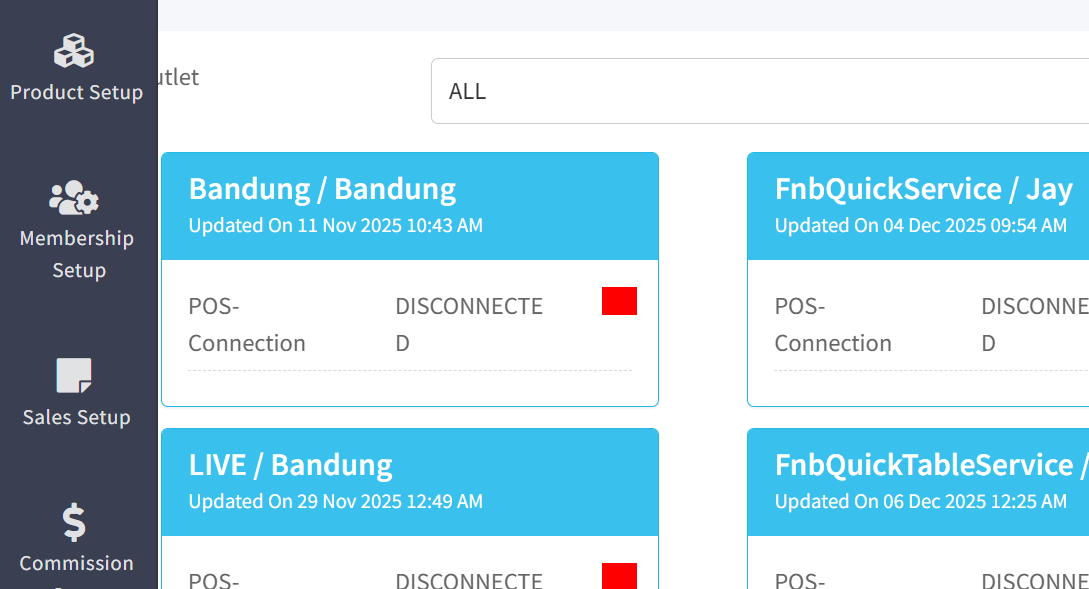 4. Check Last Sync — should be recent (within the last few minutes).
Troubleshooting Offline Terminals
- Identify the offline terminal in the dashboard.
- Check the terminal's Last Sync time — how long has it been offline?
 3. Verify the terminal is powered on and connected to the network.
4. Check the terminal's IP Address — try pinging it from the network.
3. Verify the terminal is powered on and connected to the network.
4. Check the terminal's IP Address — try pinging it from the network.
5. If the terminal is online but showing errors, check the WinPowerPOS error log on the machine.
End-of-Day Verification
- Before generating end-of-day reports, check Terminal Status.
2. Ensure all terminals show Pending Upload = 0.
3. If any terminal has pending uploads, wait for sync to complete before running reports.
4. If a terminal is offline with pending data, the day's reports will be incomplete for that terminal.
8.1.4 Common Issues
| Issue | Cause | Solution |
|---|---|---|
| Terminal shows Offline | Network disconnection, terminal powered off | Check network cable/WiFi, restart terminal |
| Pending Upload stuck at high number | Sync failure, server overloaded | Restart the WinPowerPOS sync service, check server status |
| Last Sync is hours old | Slow network, large data queue | Wait for sync or restart terminal to force reconnect |
| Version mismatch | Terminal running outdated software | Update via Applications page (Section 12.6) |
💡 Example
Scenario: It's 10 PM and the store manager wants to run end-of-day settlement. Before closing, they need to verify all POS data has synced.
Steps:
- Navigate to Terminal Status.
2. Check all 3 terminals:
- ION-POS1: 🟢 Online, Pending Upload: 0, Last Sync: 9:58 PM ✅
- ION-POS2: 🟢 Online, Pending Upload: 0, Last Sync: 9:57 PM ✅
- ION-POS3: 🟡 Sync Pending, Pending Upload: 5, Last Sync: 9:45 PM ⚠️
- Wait 2 minutes for ION-POS3 to finish syncing.
- Refresh — ION-POS3 now shows Pending Upload: 0 ✅.
5. All data is synced — safe to run Daily Settlement report.
[!TIP] Check Terminal Status before running any reports, especially end-of-day settlement. Reports only include data that has been synced to the server.
[!WARNING] If a terminal has been offline for an extended period (hours/days), its pending upload queue may be very large. Allow extra time for the sync to complete and avoid shutting down the terminal during sync.
Access & Permissions
| Role | View | Create | Edit | Delete |
|---|---|---|---|---|
| Admin | Yes | Yes | Yes | Yes |
| Supervisor | Yes | Yes | Yes | No |
| Cashier | No backend access | — | — | — |
[!NOTE] Exact permissions depend on the Privileges Setup configured for each role. Contact your administrator if you cannot access this page.
Related Menus
- Product Setup > Product List — products linked to outlets
- User Setup > User List — users assigned to outlets
- Sales Setup > Payment Mode — payment methods per outlet
- Setting > Company Setup — company-wide settings
Open Questions / Confirmation Needed
[!NOTE] The following items may vary depending on your system version and configuration:
- Exact permission settings depend on your Privileges Setup configuration
- Sync timing to POS terminals depends on network conditions and sync schedule
- Some features may require additional licensing or module activation
- Field behavior may differ between EQuip versions
If you encounter behavior not described in this manual, contact your system administrator or EQuip support team.
Expected Result: Changes are saved successfully and reflected across the system after the next POS sync.
FAQ
Q: Can I delete an outlet that has transaction history? A: You can soft-delete it, but it cannot be permanently removed if it has linked transactions or POS terminals.
Q: Why are changes not showing on the POS terminal? A: The POS needs to sync. Check Terminal Status for the last sync time and trigger a manual sync if needed.
Q: What happens if I change the company name? A: The change will appear on all new receipts after the next POS sync. Existing printed receipts are not affected.
Field Reference
| Field | Required | Description |
|---|---|---|
| Name / Title | Yes | The display name for this record |
| Status / Active | — | Whether this record is active in the system |
| Created Date | Auto | System-generated creation timestamp |
| Modified Date | Auto | System-generated last modification timestamp |
[!NOTE] Additional fields specific to this page are documented in the sections above. The table above shows common fields present across most pages.
Related Articles
POS Terminal Settings
? Backend — EQuipWebRetail ModeSetting Chapter 12: Setting — 12.9 POS Terminal Settings Use POS Terminal Settings to fine-tune how each POS terminal behaves — receipt formatting, printer assignments, payment options, and display preferences. ...POS Setup
? Backend — EQuipWebRetail ModeMaster Data Setup Chapter 8: Master Data Setup — 8.2 POS Setup Use POS Setup to register and configure each POS terminal in your outlets. Every cash register or tablet running the POS app needs to be set up here first ...Online Sales Order
? Backend — EQuipWebRetail ModeSales Setup Sales Setup — 4.8 Online Sales Order Use Order to manage and configure this feature in your EQuipWeb system. The Online Sales Order page shows all orders coming in from your connected delivery platforms ...Delivery Order List
? Backend — EQuipWebRetail ModeDelivery Chapter 7: Delivery — 7.1 Delivery Order Use Order to manage and configure this feature in your EQuipWeb system. The Delivery Order List shows all your delivery orders in one place. Track order statuses, view ...Term & Condition
? Backend — EQuipWebRetail ModeMaster Data Setup Chapter 8: Master Data Setup — 8.12 Term & Condition Use Condition to manage and configure this feature in your EQuipWeb system. The Term & Condition page manages the terms and conditions content ...